Exploding Topics
Secops search volume grew from 2,475 to 9,900 monthly searches between October 2024 and September 2026.
Secops
+300%
Preply search volume grew from 822,581 to 1,500,000 monthly searches between December 2024 and November 2026.
Preply
+82%
Loop Earplugs search volume grew from 370,150 to 673,000 monthly searches between October 2024 and September 2026.
Loop earplugs
+82%



Get Advanced Insights on Any Topic
Discover Trends 12+ Months Before Everyone Else
How We Find Trends Before They Take Off
Exploding Topics’ advanced algorithm monitors millions of unstructured data points to spot trends early on.
Keyword Research
Performance Tracking
Competitor Intelligence
Fix Your Site’s SEO Issues in 30 Seconds
Find technical issues blocking search visibility. Get prioritized, actionable fixes in seconds.
Powered by data from
Latest Blog Posts
Featured Case Studies
See what's trending before everyone else
Each week, we'll send you our best Exploding Topics. Plus, expert insight and analysis.
How to Get Trend Alerts in Slack (Exploding Topics + Zapier)

 Add Exploding Topics on GoogleAdd Exploding Topics as your preferred source to see more of our stories on Google.
Trends can be a valuable asset to your brand in marketing, product development, and beyond. But to reap the rewards of organic consumer interest, you have to move fast.
Exploding Topics is full of valuable data that can help you capitalize on trends before they peak. Daily checks might help you spot these opportunities in time to incorporate them into your strategies, but what if the trends could come to you?
Using Zapier, you can connect Exploding Topics to Slack to deliver trends to your team on a regular schedule. This not only enables you to learn about rising trends quickly, but removes the step of manually searching the Exploding Topics Database to find them as well.
This tutorial will walk you through the steps to create your own weekly trend alert workflow so you can make the most of the topics taking off in your niche.
How to Get Trend Alerts in Slack
Here are the tools you’ll need to follow the steps below:
- Slack (free or pro)
- Exploding Topics Pro with API access
- Zapier Pro (required for multi-step workflows)
If you’re using a different communication platform, like Microsoft Teams, you can adapt this workflow to send your trend alerts wherever your team collaborates (as long as there’s a Zapier app for it).
Make sure all your accounts are set up, then head over to Zapier to get started.
Optional: Create Your Zapier Workflow With AI
Zapier offers an AI workflow builder powered by Copilot to help you create automations. If you’d prefer, you can describe your Exploding Topics–Slack workflow in the chatbox and let Zapier set it up for you.
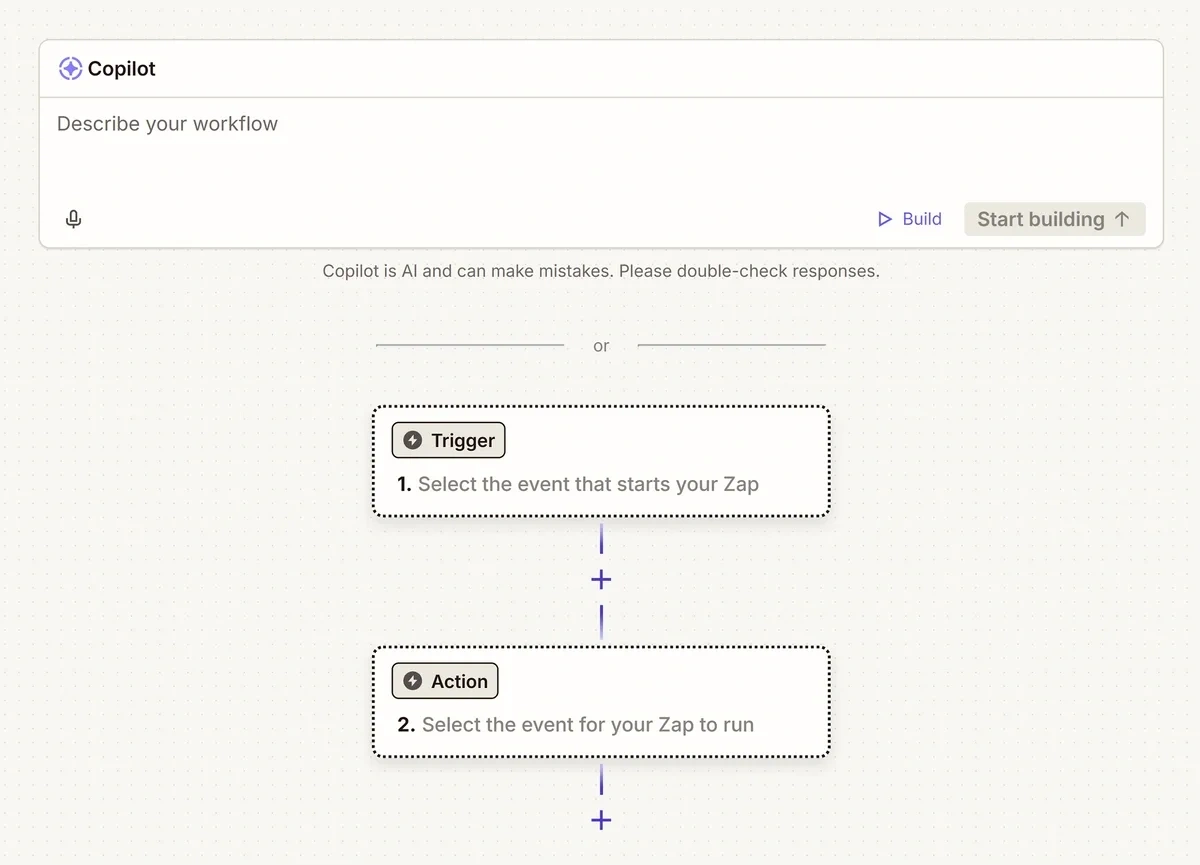
I’ve tested it out myself and found it to be a nice timesaver. Keep in mind that you’ll still need to add your credentials to connect Exploding Topics and Slack to Zapier.
To help you out with those steps—and for a bit of extra guidance in case you’d prefer to create your workflow manually or need help with troubleshooting—I’ve walked through the entire process start to finish.
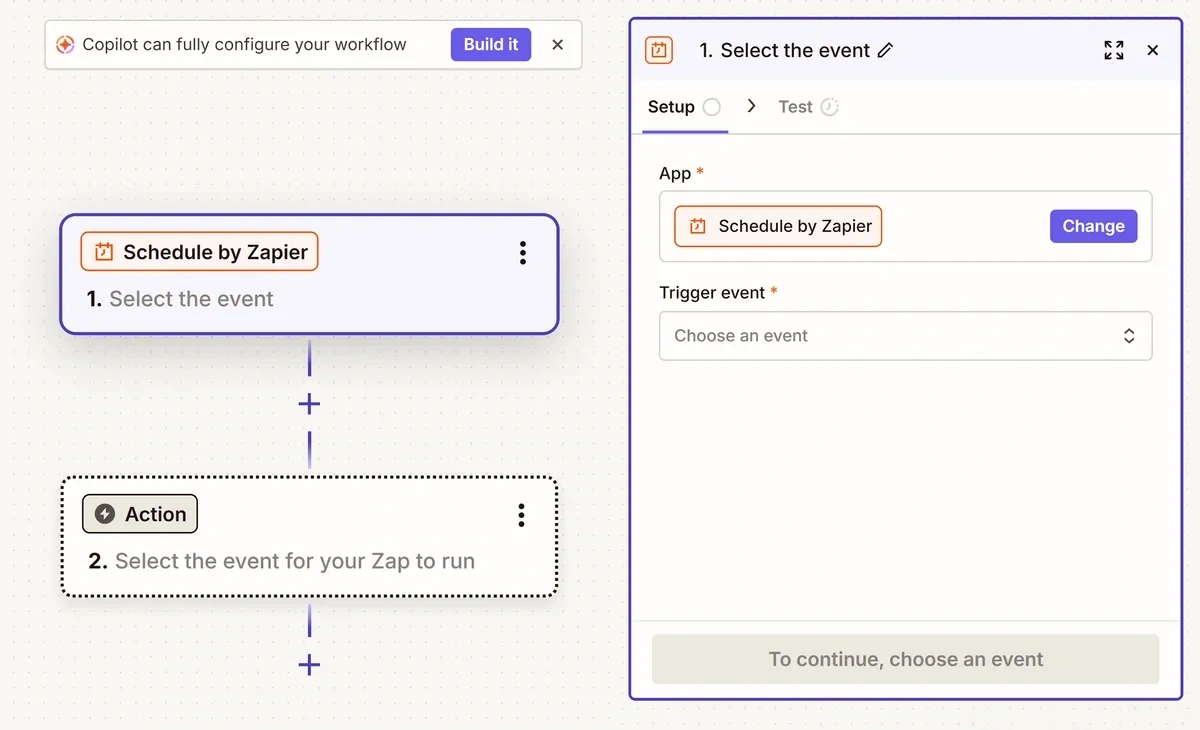
If you start following the manual setup process and decide you’d like some AI-powered assistance, you can access the Copilot workflow builder at any time by clicking the Build it button at the top of the workflow builder.
Optional: Create a New Slack Channel for Trend Alerts
Depending on how you decide to configure your Zapier workflow, you may be receiving multiple trend alerts in Slack every day. This can lead to a cluttered channel if you’re also trying to communicate with your team in the same space.
I recommend setting up a dedicated channel for trend alerts to keep them all in one place and separate from your other conversations. This makes it easier to sift through your trend alerts and analyze them.
You can also adjust the visibility of the channel so that only the team members who should see your trend alerts have access to them.
To create a new channel in Slack, just click on the plus (+) icon next to Channels.
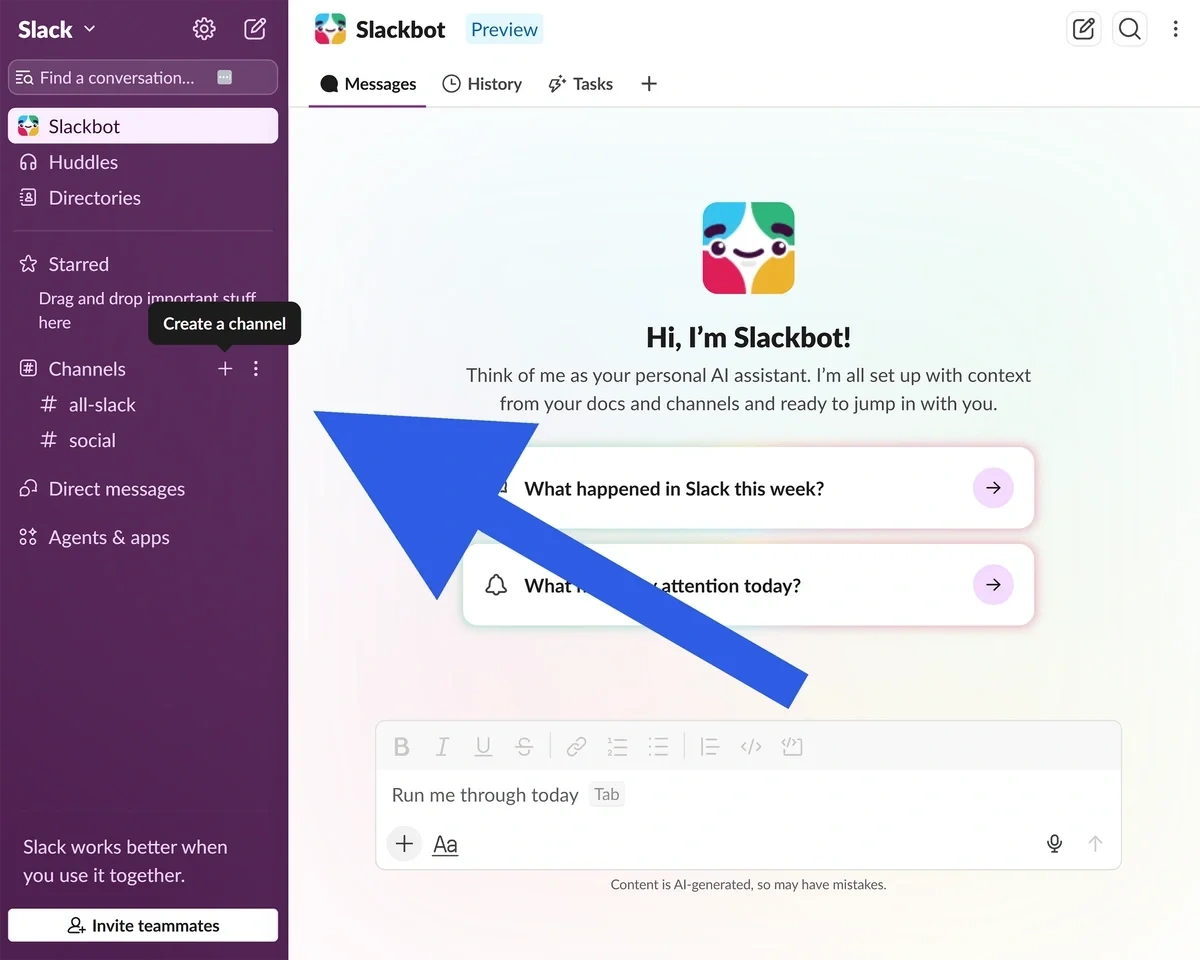
Then type in a name for your channel and follow the prompts to configure a couple of simple settings.
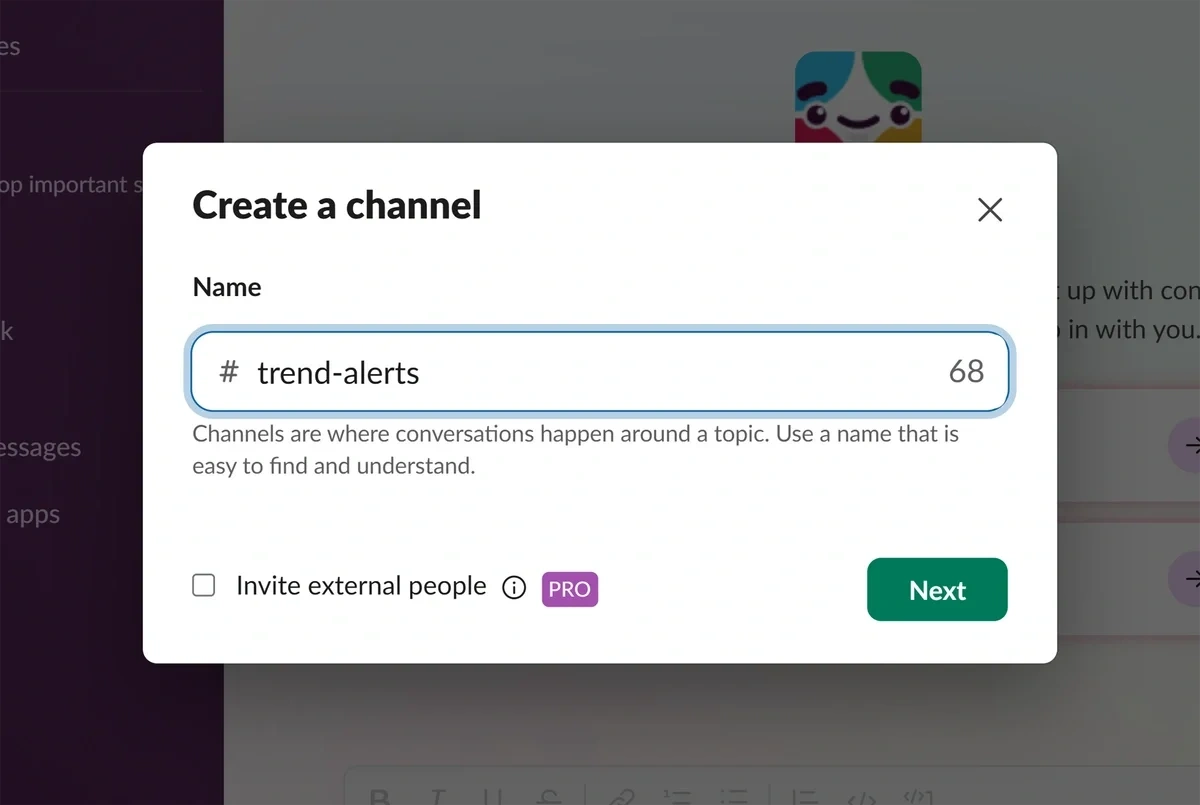
With that squared away, you can move over to Zapier and start building your workflow.
Build a winning strategy
Get a complete view of your competitors to anticipate trends and lead your market
Step 1: Set Up Your Zapier Workflow Schedule
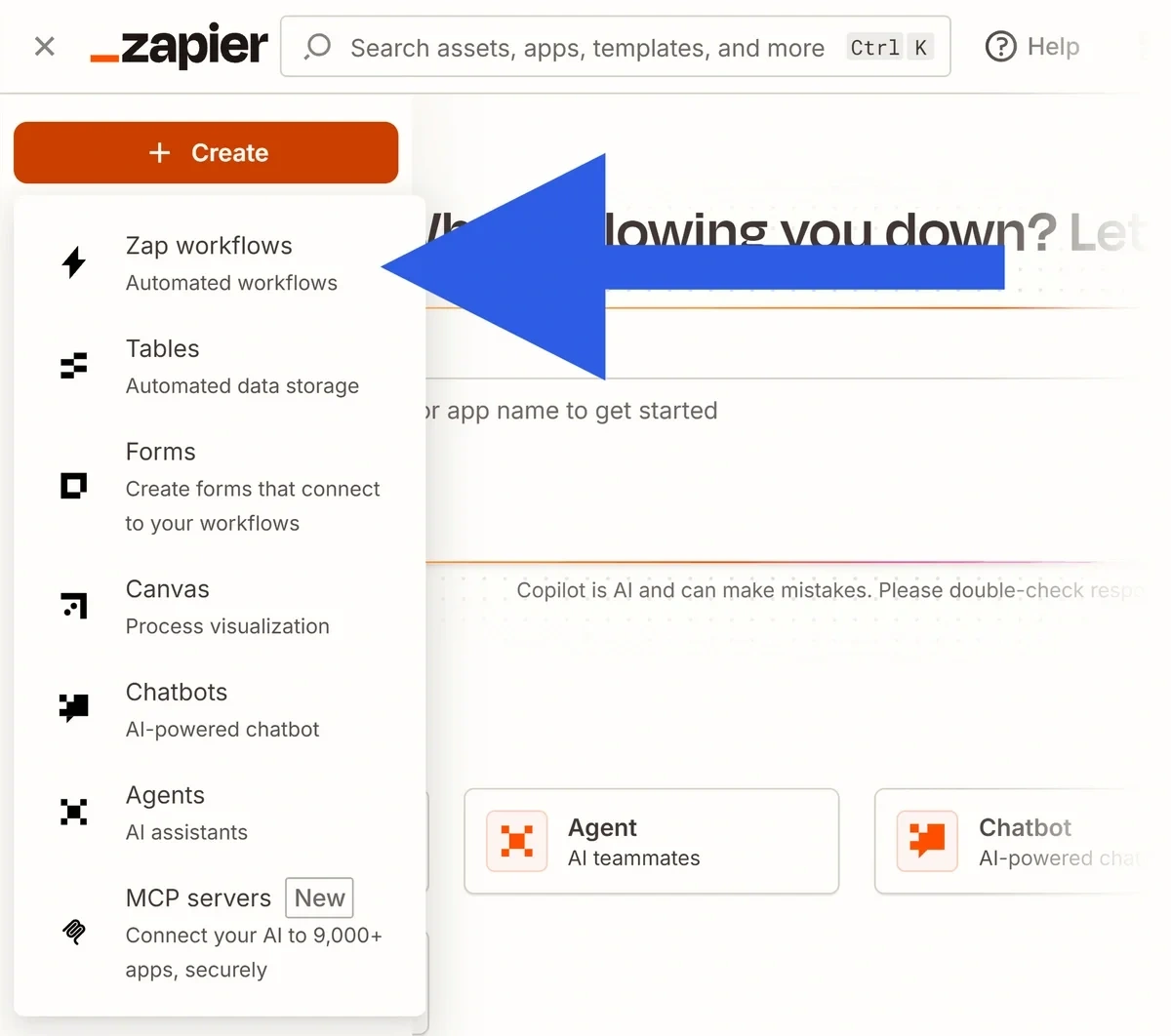
To access the Zapier workflow builder, click Create and select Zap workflow.
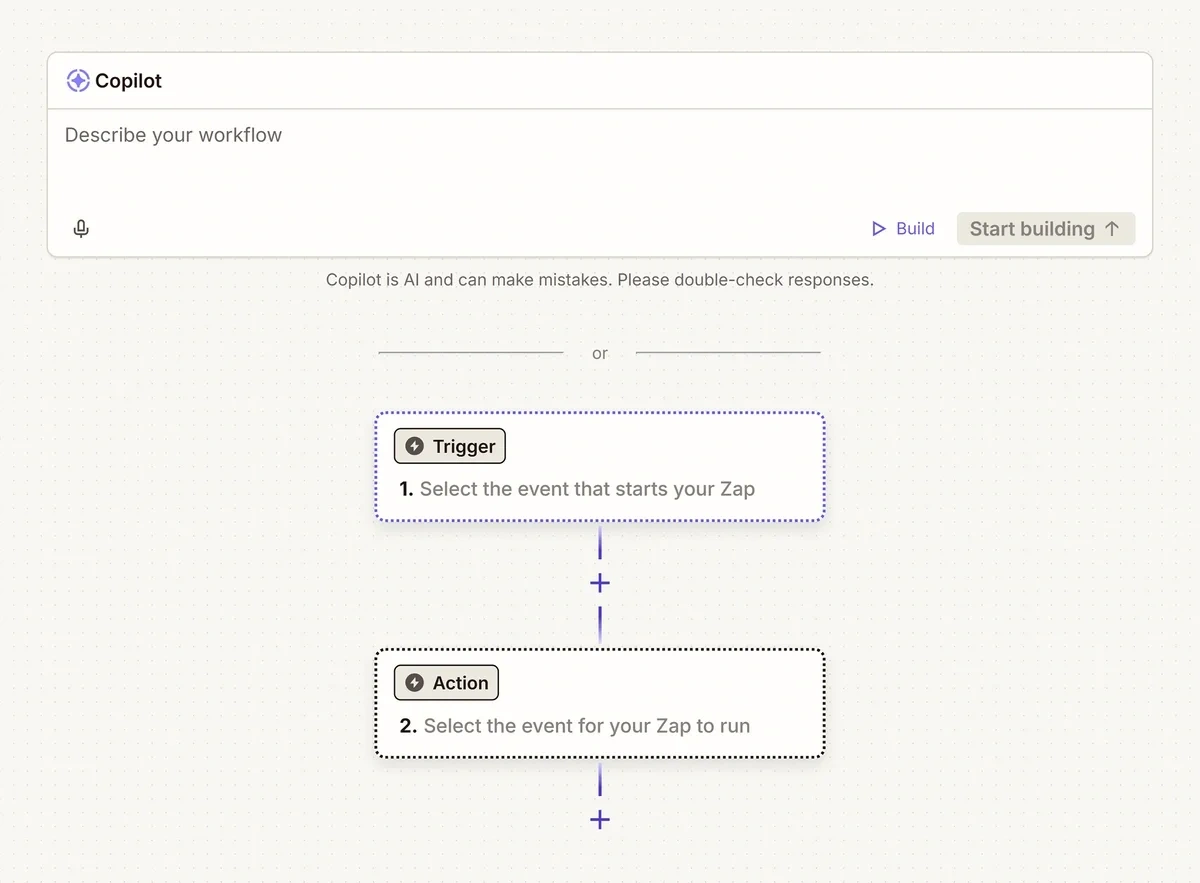
Then click on the first Trigger box in the builder.
The Exploding Topics Zapier app is still in beta, so you’ll need to take a few extra steps to select it in the workflow builder. When the app library popup appears, click the Browse all link in the search bar.
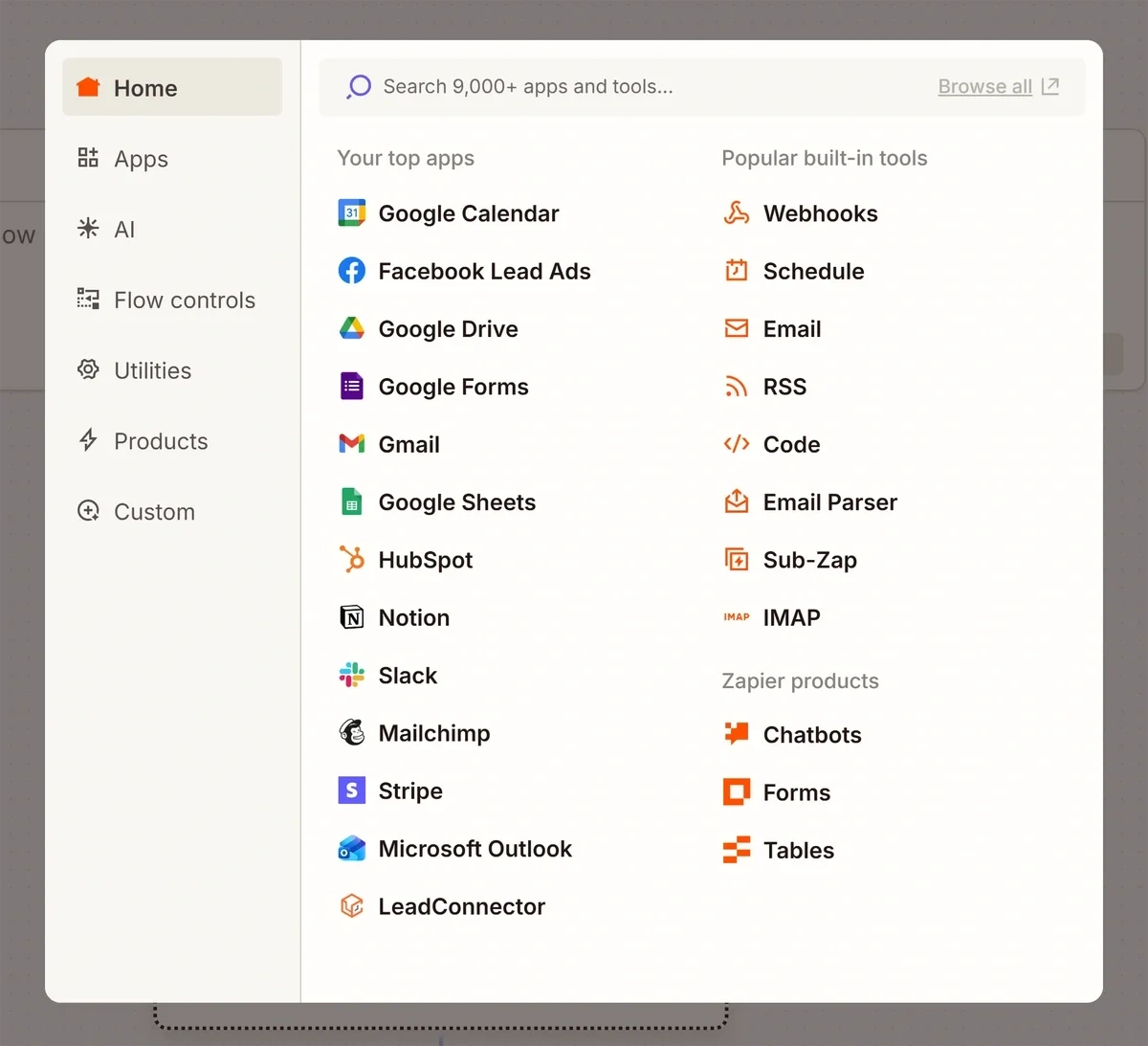
Then enter “Exploding Topics” in the search bar on the next page.

On the Exploding Topics app page, click Connect Exploding Topics to 9,000+ apps.
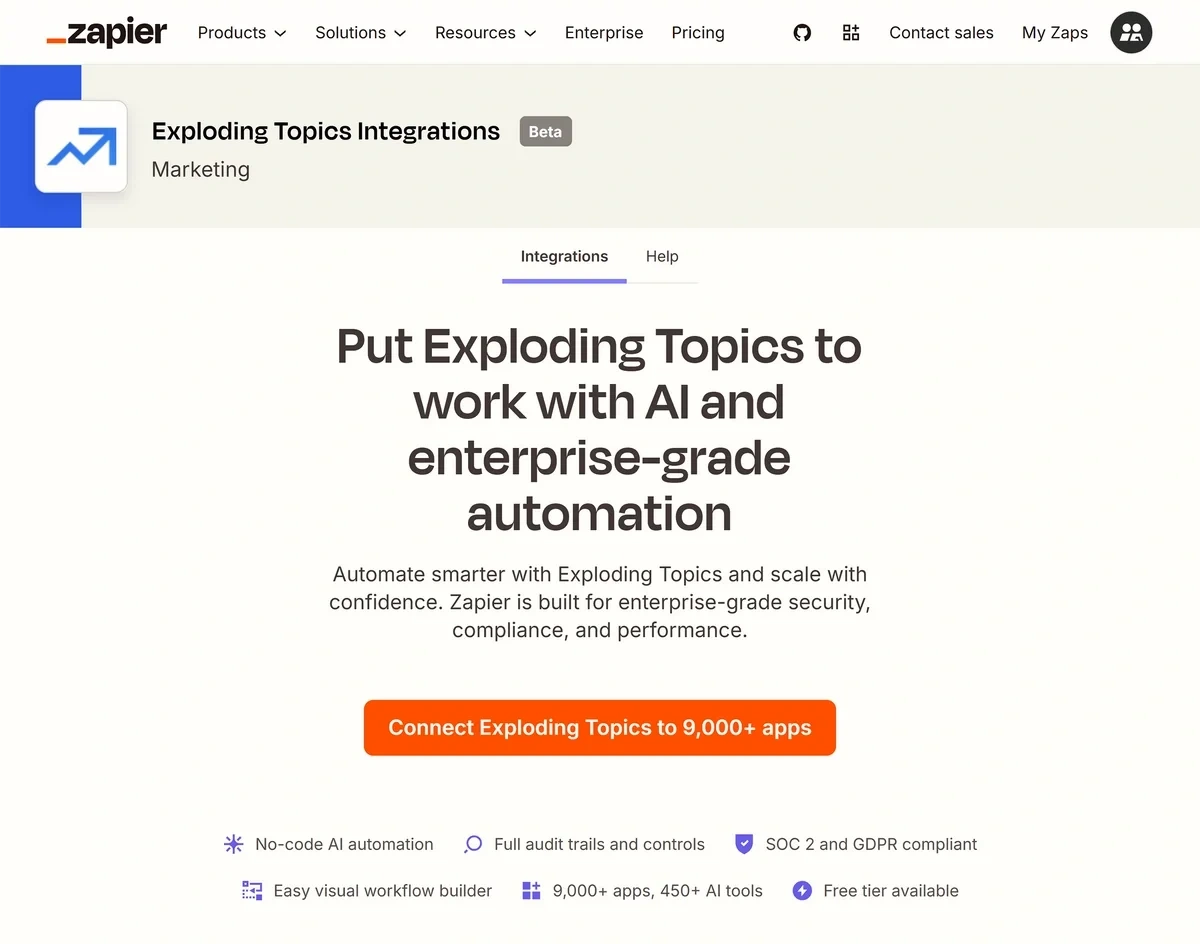
You’ll be redirected back to the workflow builder, and Zapier will set up a trigger and an action step for you.
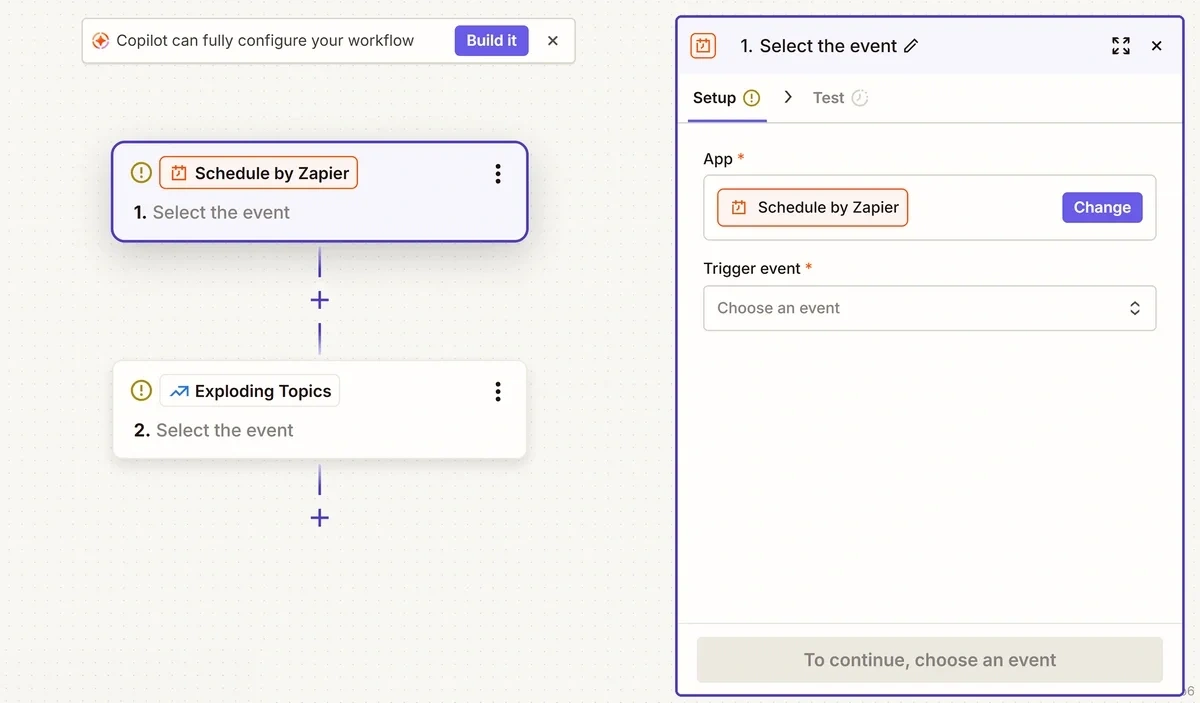
All of the Exploding Topics actions require a schedule to run, so the first step in configuring your automation is deciding when and how often you want to source new topics to send to Slack.
Click on the Trigger event dropdown, then select your schedule frequency.
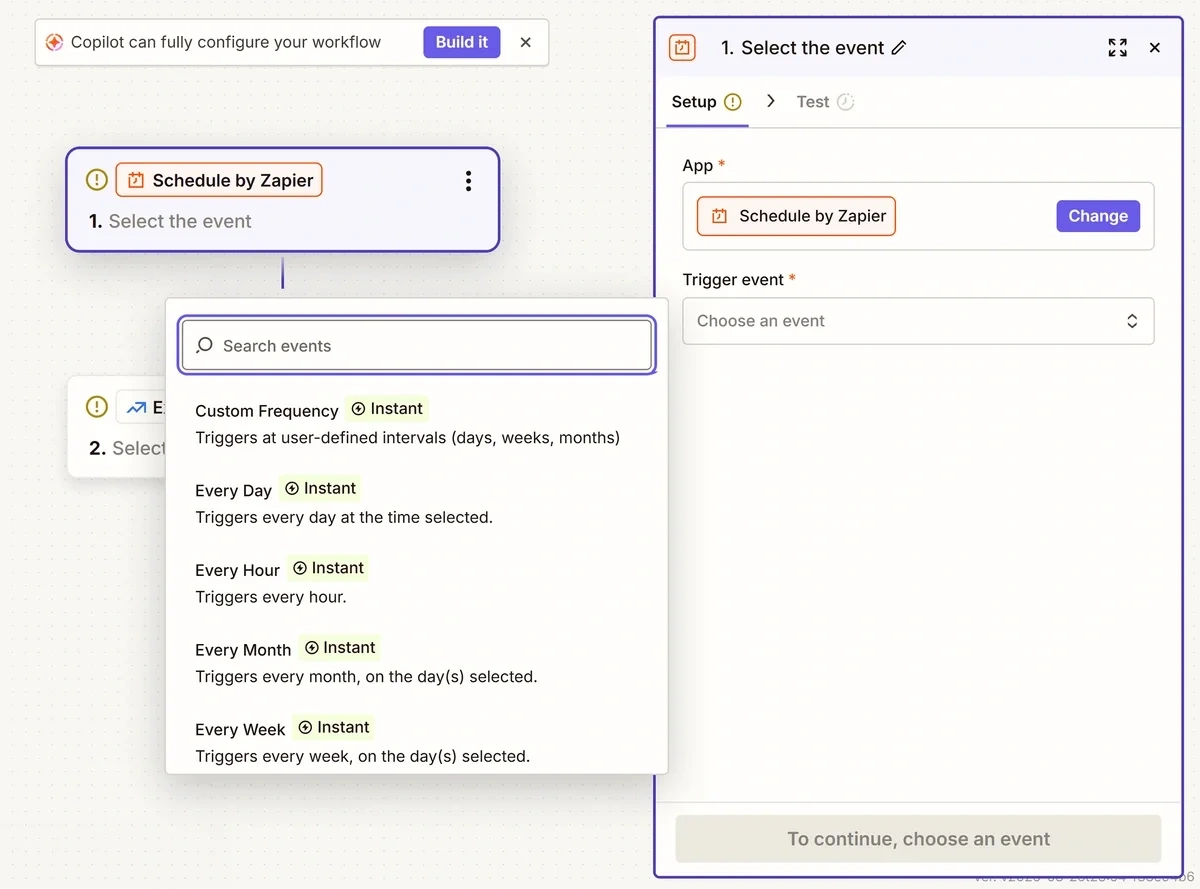
In my opinion, a weekly schedule is ideal for trend alerts. This will prevent you from unintentionally flooding your team’s notifications every day, but still give you a regular influx of new topics to analyze.
Click Continue, then use the dropdowns in the configuration panel to determine what day of the week and time your automation will run, as well as what timezone to use.
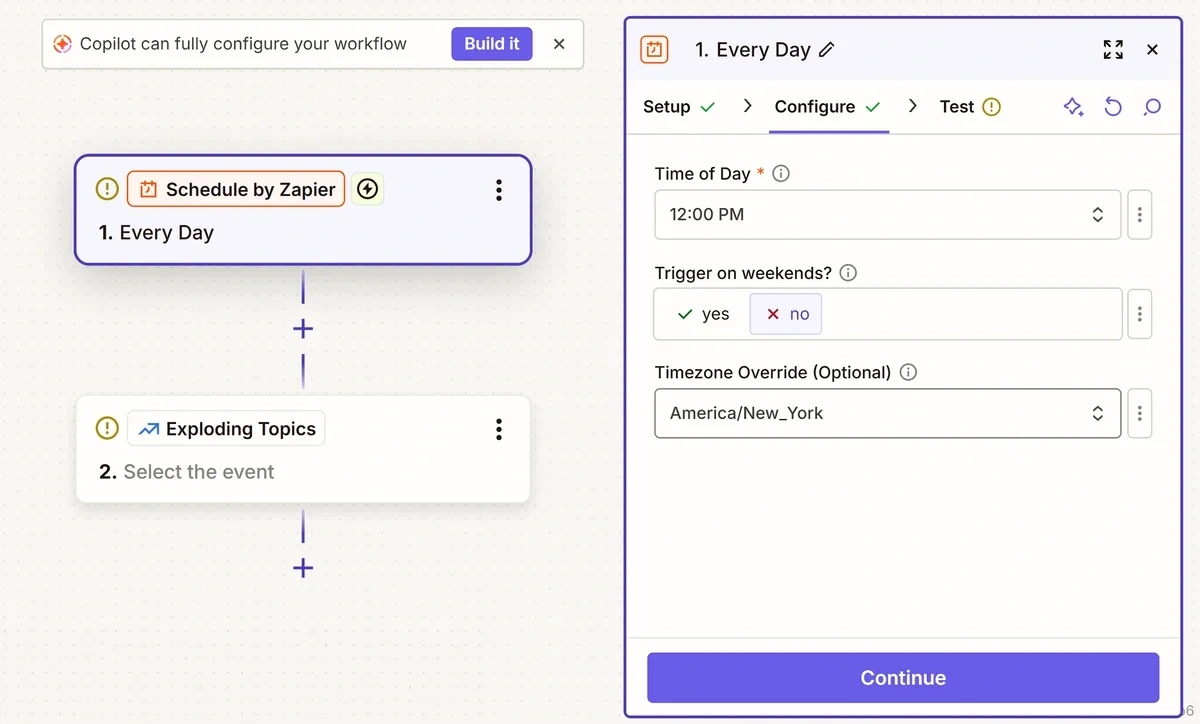
Click Continue again. Zapier will give you the chance to test your trigger to make sure everything is configured properly.
I highly recommend you run all the workflow tests while you’re building your automation. Testing each step separately makes troubleshooting much easier if you encounter a problem, and can help you avoid having to pick your whole workflow apart and redo it later.
Click Test trigger to run the test.
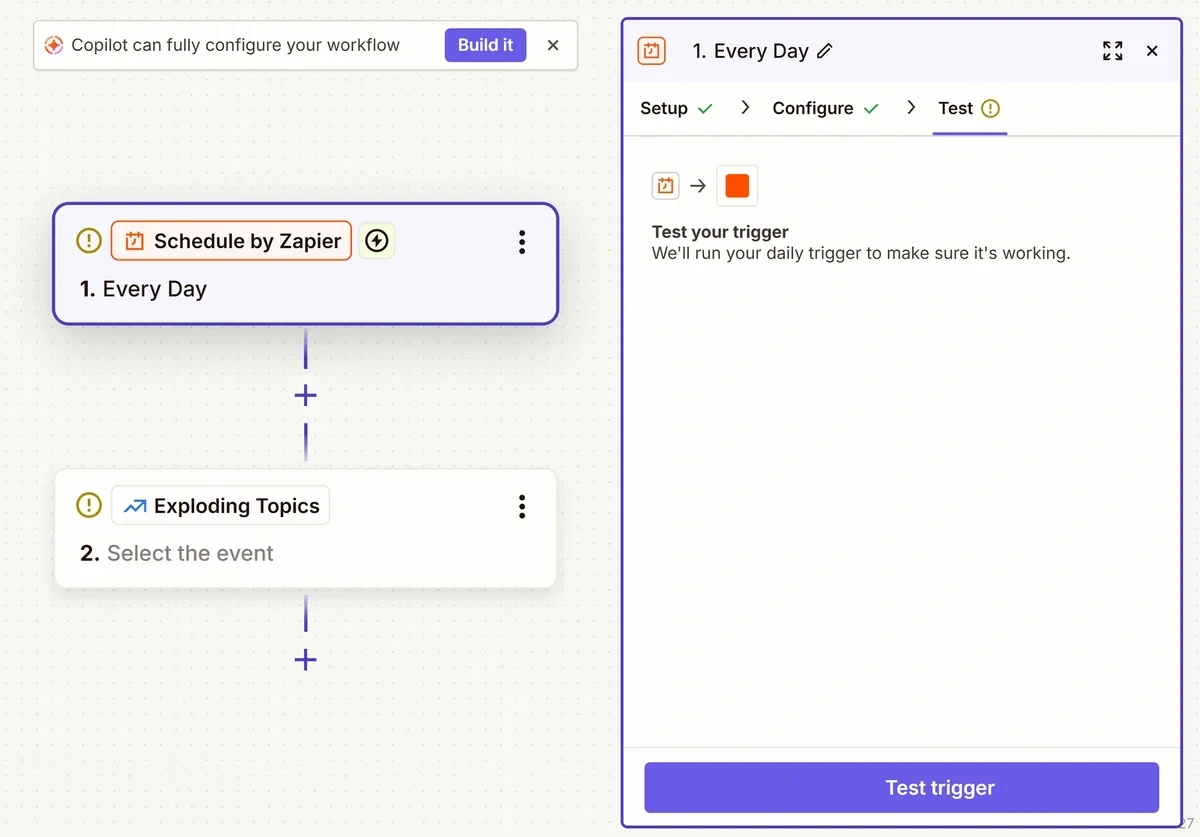
If everything is working as it should, Zapier will return a test record. Click Continue with selected test record to use this data in future tests, and move on to the next step.
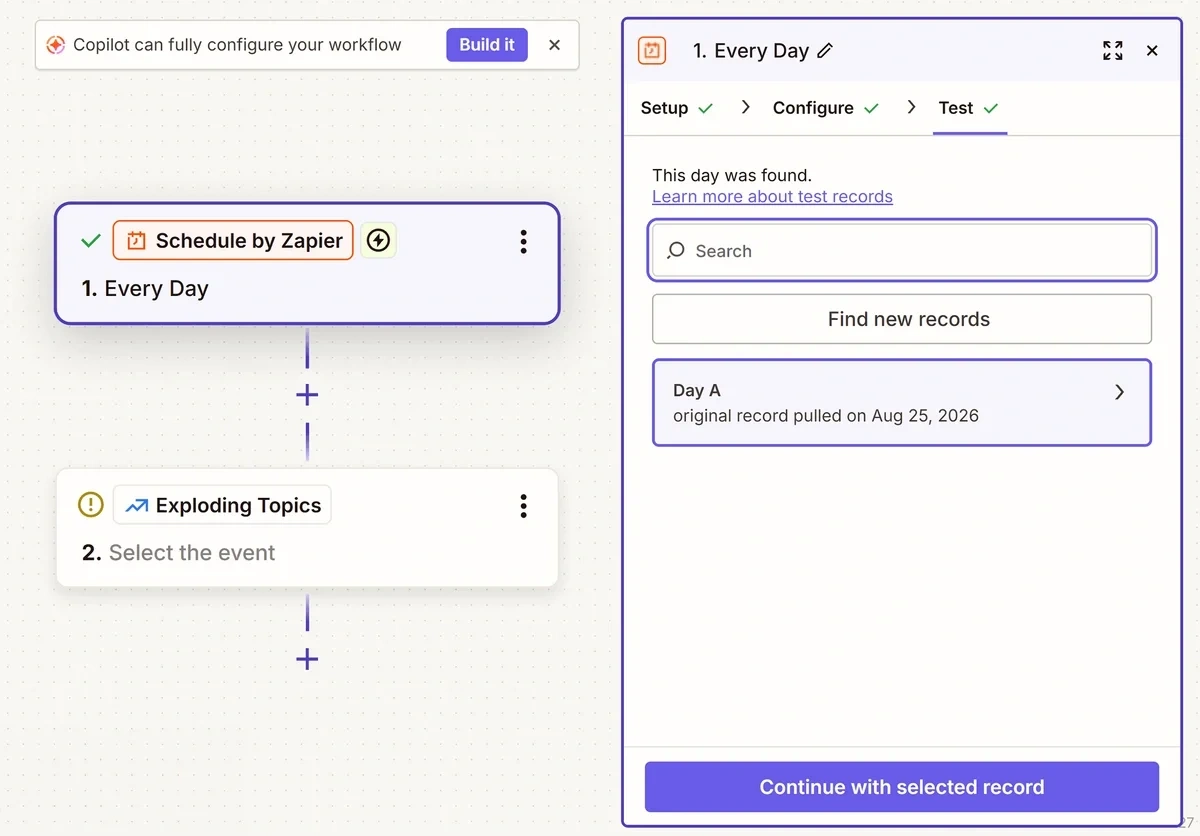
Step 2: Create Your Exploding Topics Action Event
Now you can connect Exploding Topics to Zapier and set up your first workflow action. In the configuration panel, select an action from the Action event dropdown.
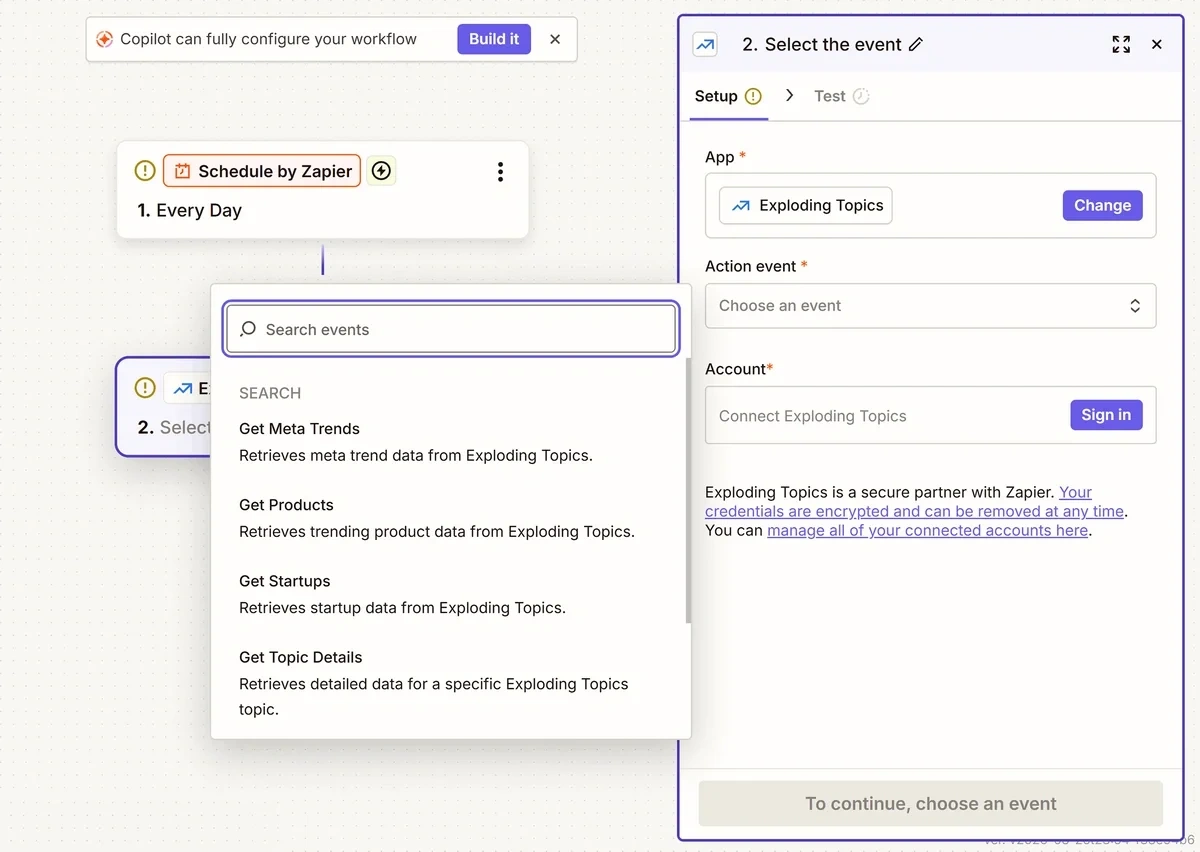
Which action is best for you will depend on the type of trends you want to receive alerts for. I’m going to select Get trending topics to set up alerts that I can use to create new content ideas, but you can also receive alerts for trending products, startups, or meta trends.
The Search Topics Database action enables you to create alerts for trends related to a specific keyword, which can also be helpful for content strategy.
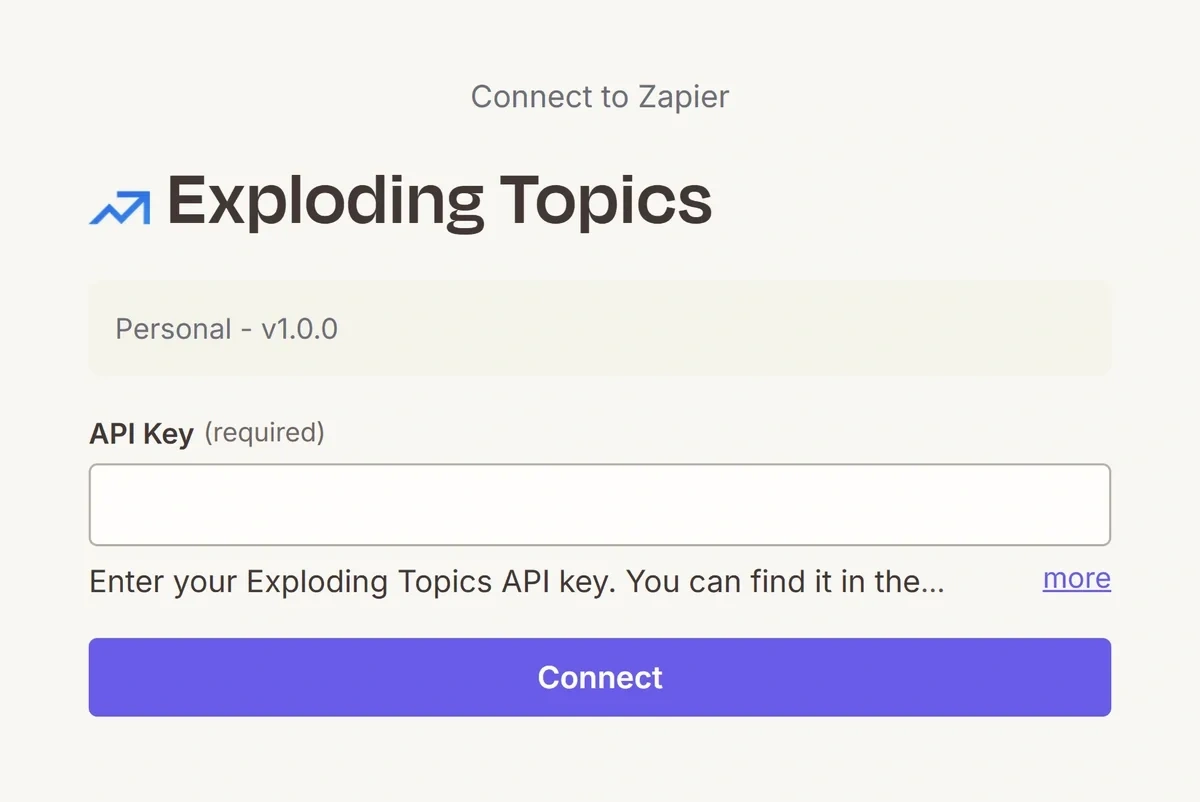
Next, you need to connect your Exploding Topics account to Zapier. Click on the Sign in button in the Account field to open a popup window where you can enter your Exploding Topics API key.
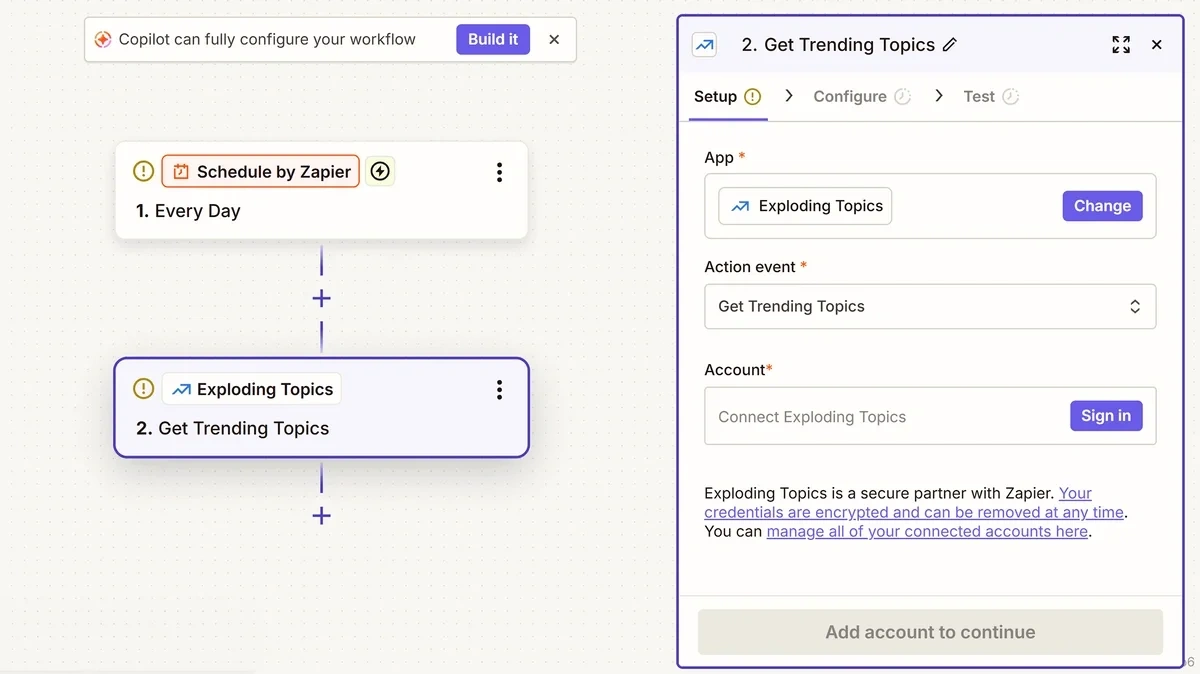
You can find your API key in the Exploding Topics app in the API Access tab.
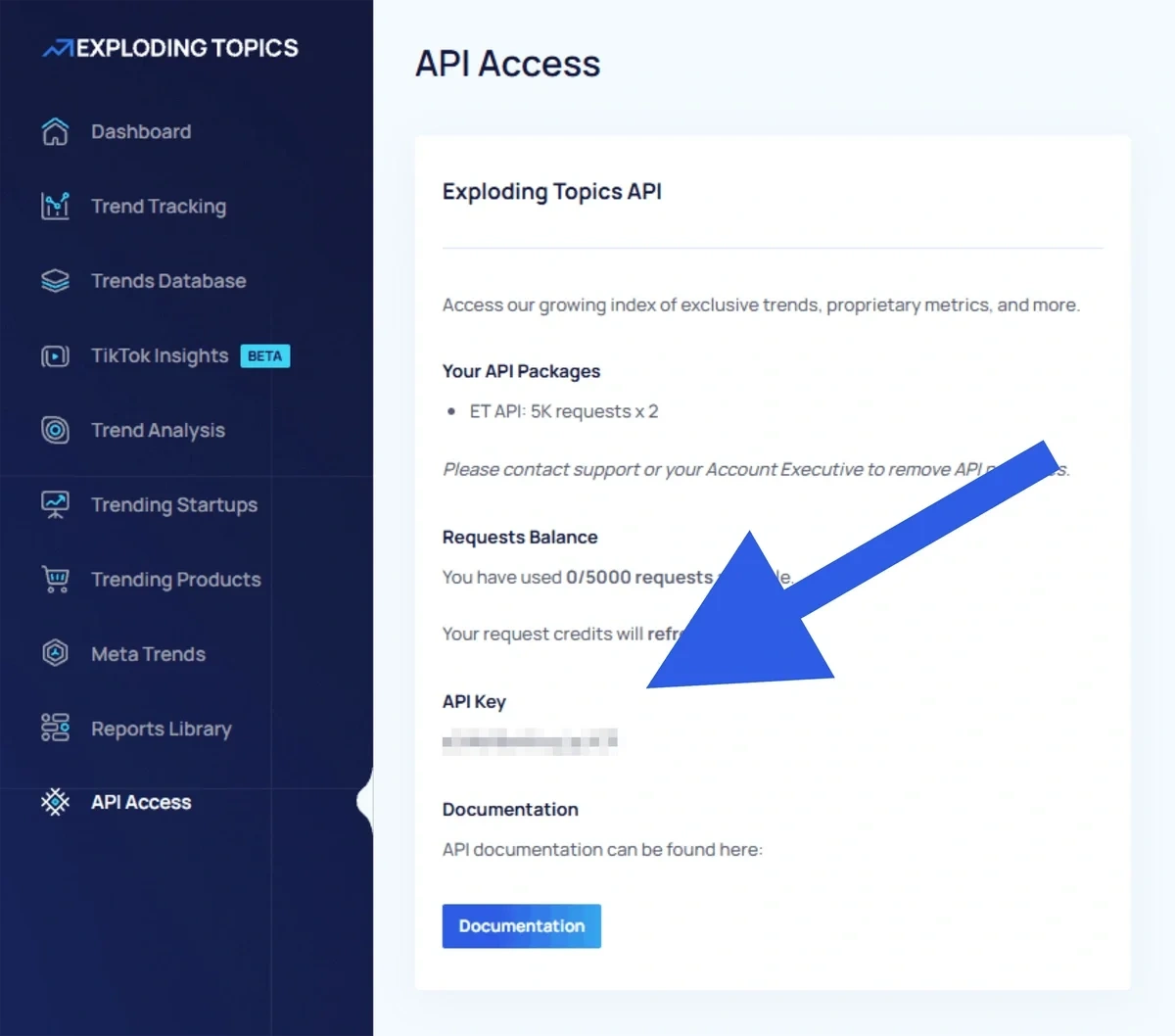
Copy and paste your API key into the popup window and click Connect. Once your account shows up in the configuration panel, click on Continue.
The next batch of settings lets you set filters for the trends Zapier will pull from Exploding Topics so you only receive alerts for relevant results.
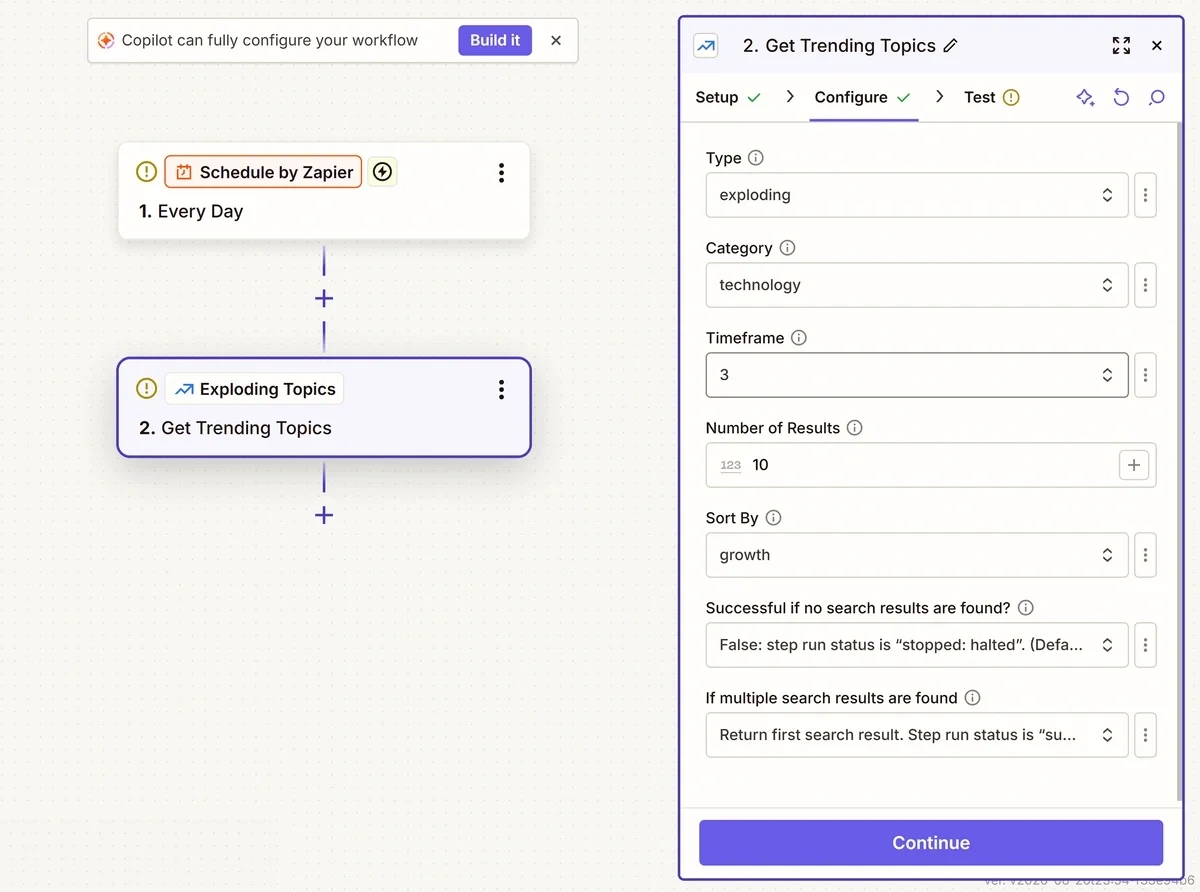
I’ve set mine to pull topics with exploding growth in the technology category from the past three months. Zapier will sort trends by growth and retrieve the top 15 results to send to my trend alerts channel in Slack.
The last two settings are also important, and I recommend leaving the default options in place. The first will ensure your workflow always pulls trends, and the second enables it to retrieve multiple results while only running the workflow once.
When you’re done, click Continue. You’ll have a chance to test this step of the workflow by clicking the Test step button.
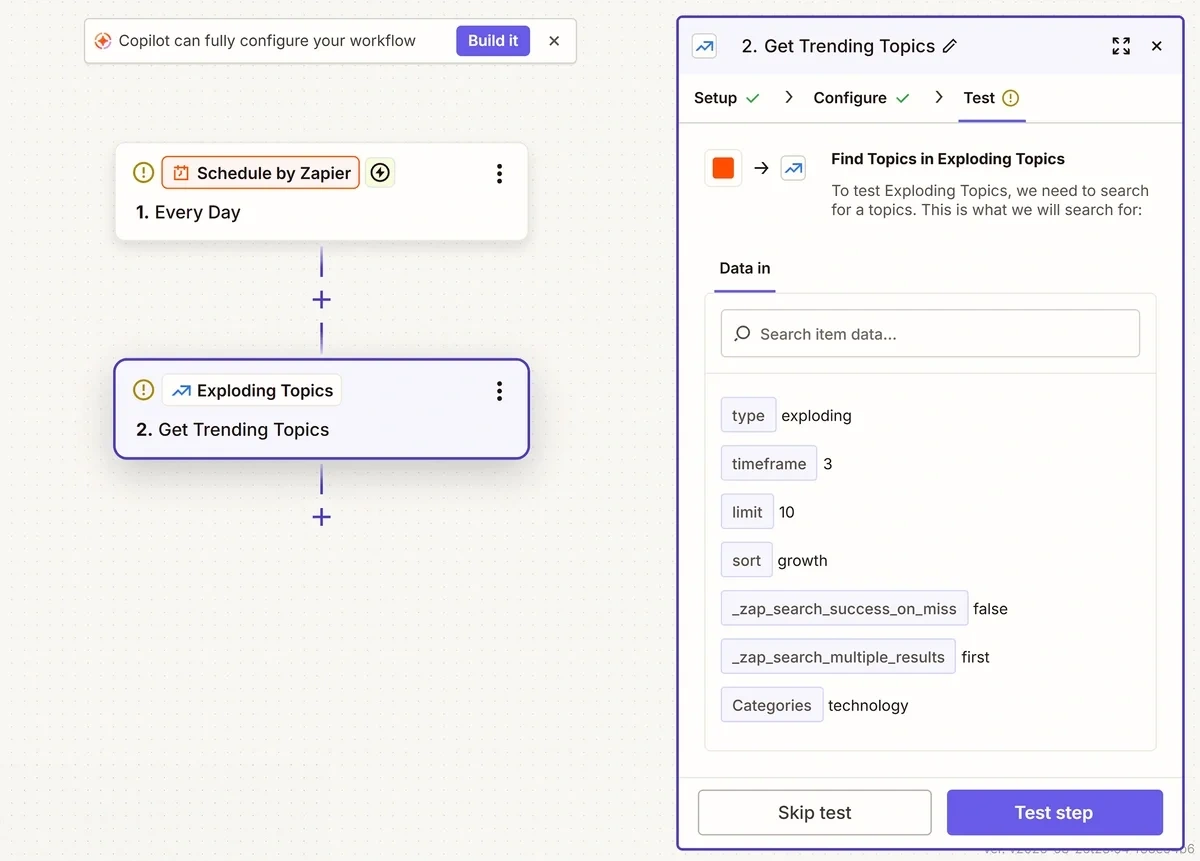
If everything is set up correctly, Zapier will return a test result and display it in the configuration panel.
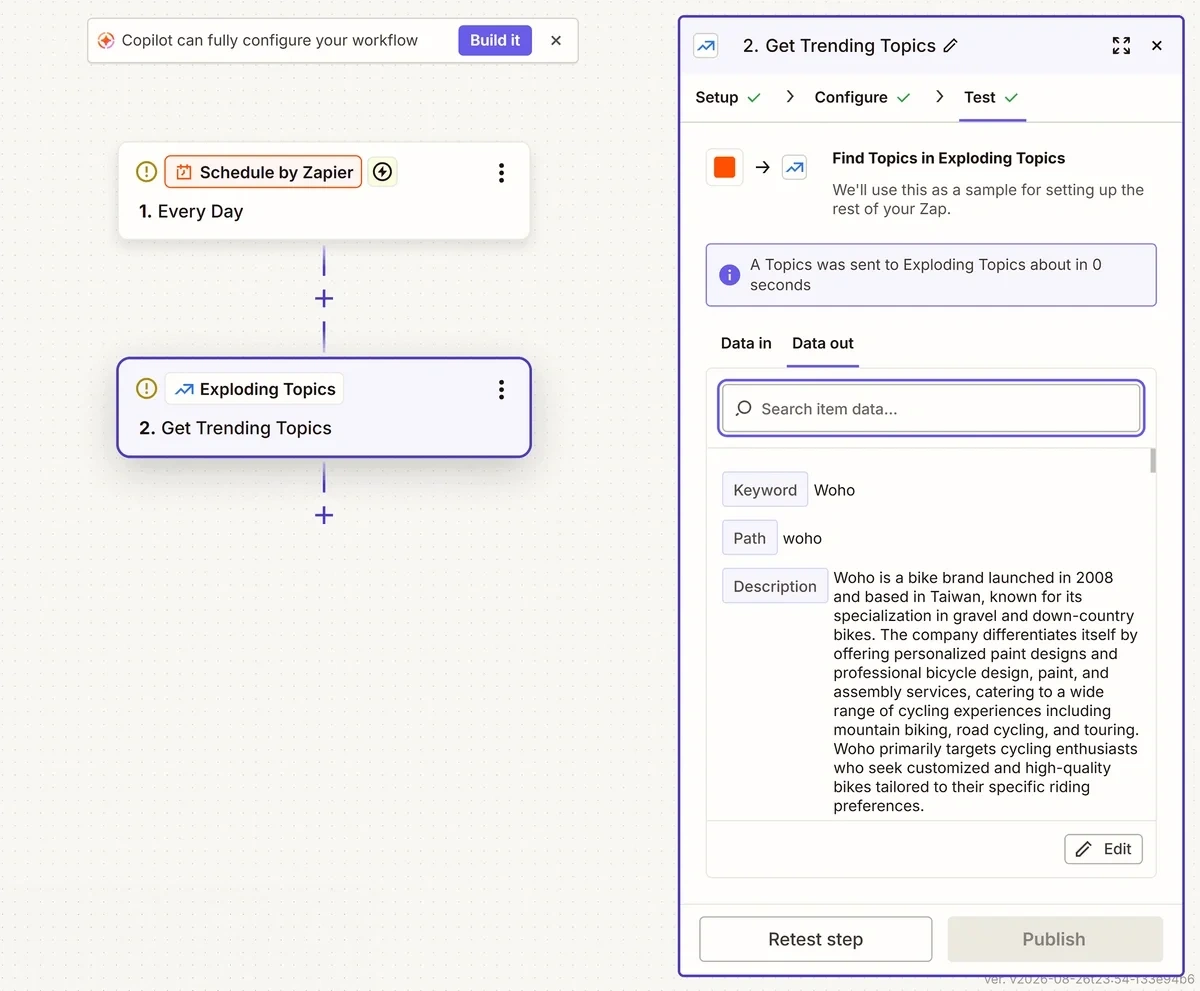
Step 3: Configure Your Zapier Action to Send a Message to Slack
Next, you need to add a second action to your Zapier workflow to send your trend alerts to Slack. Click on the plus (+) icon below your Exploding Topics action to add a new step.
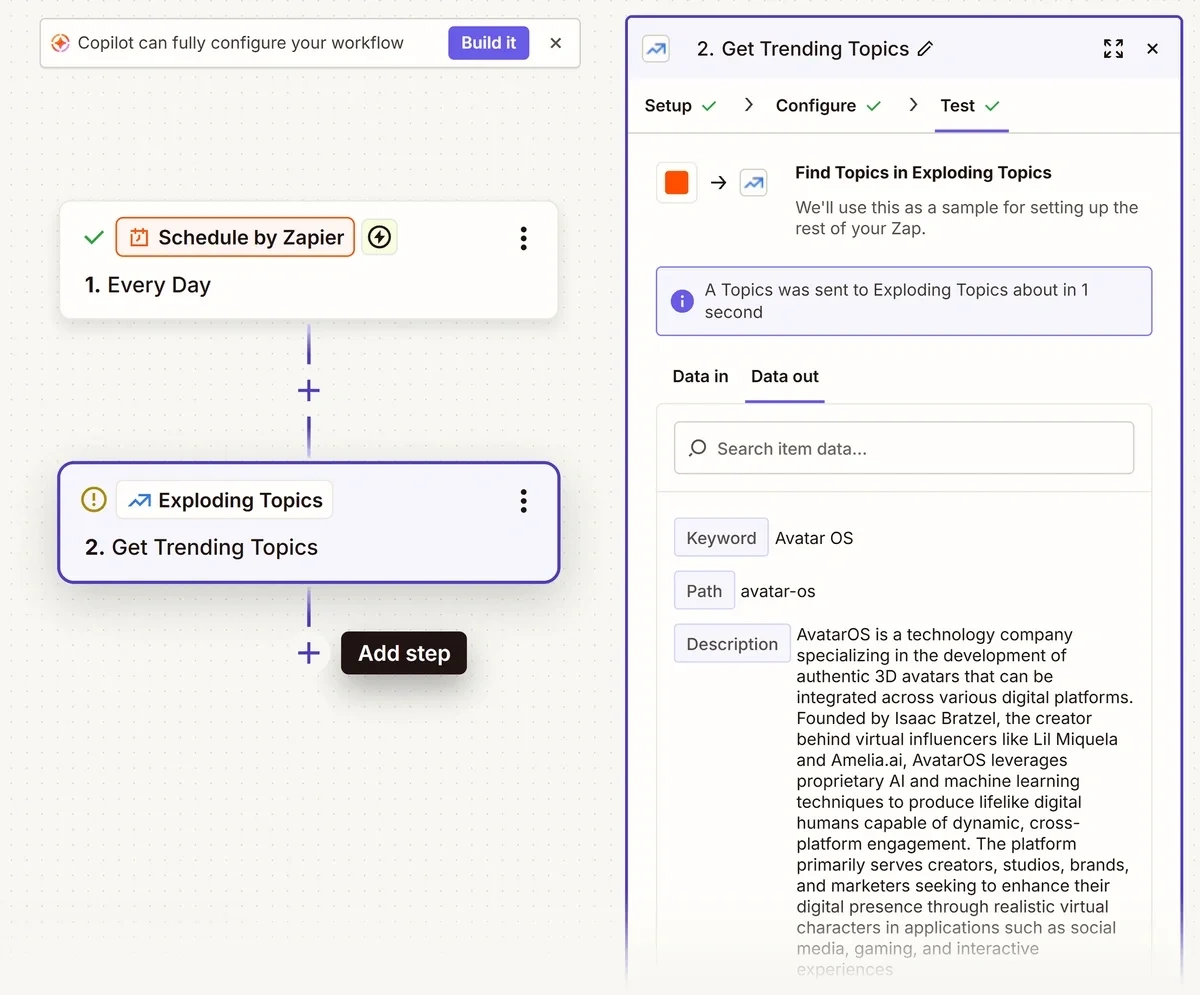
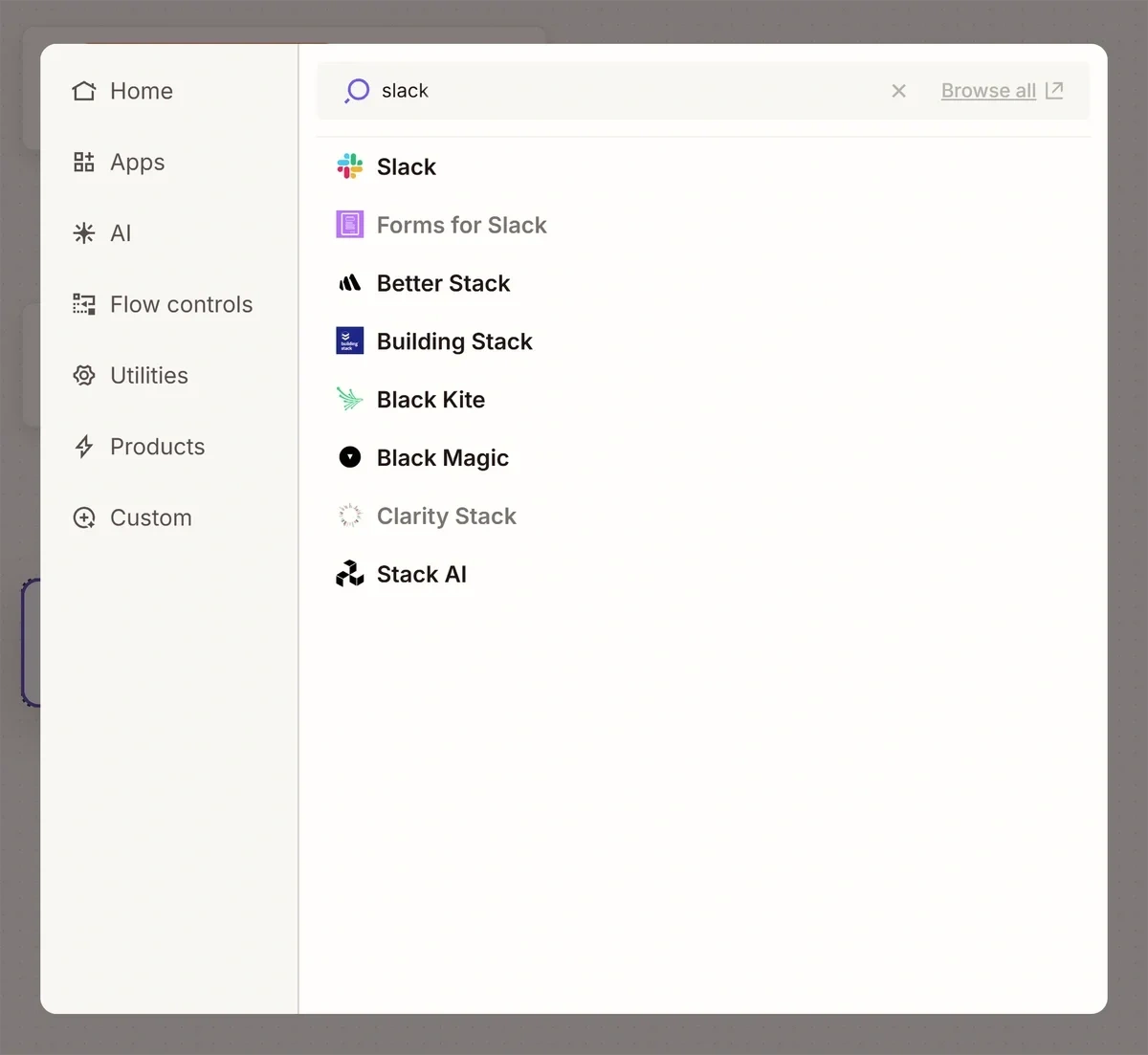
In the app library popup, search for and select Slack.
From the Action event dropdown, select Send Channel Message.
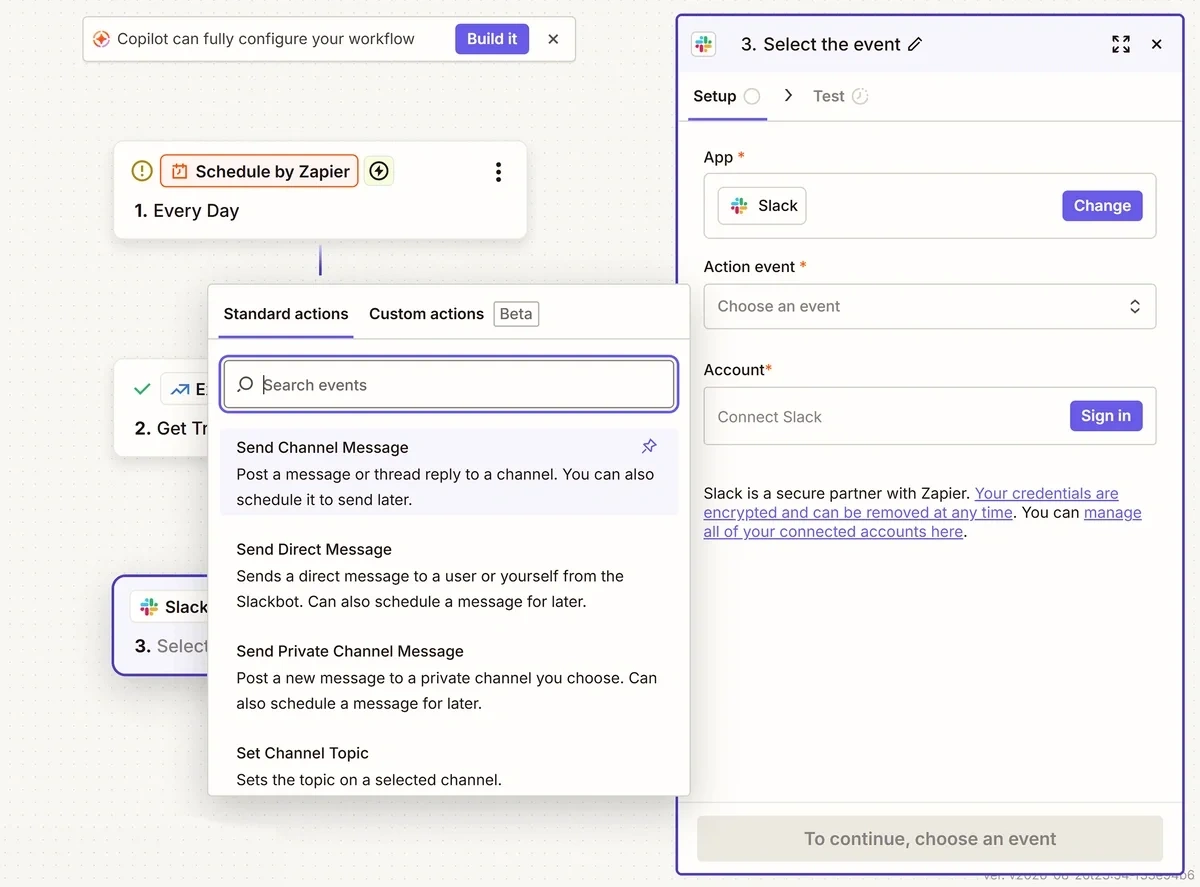
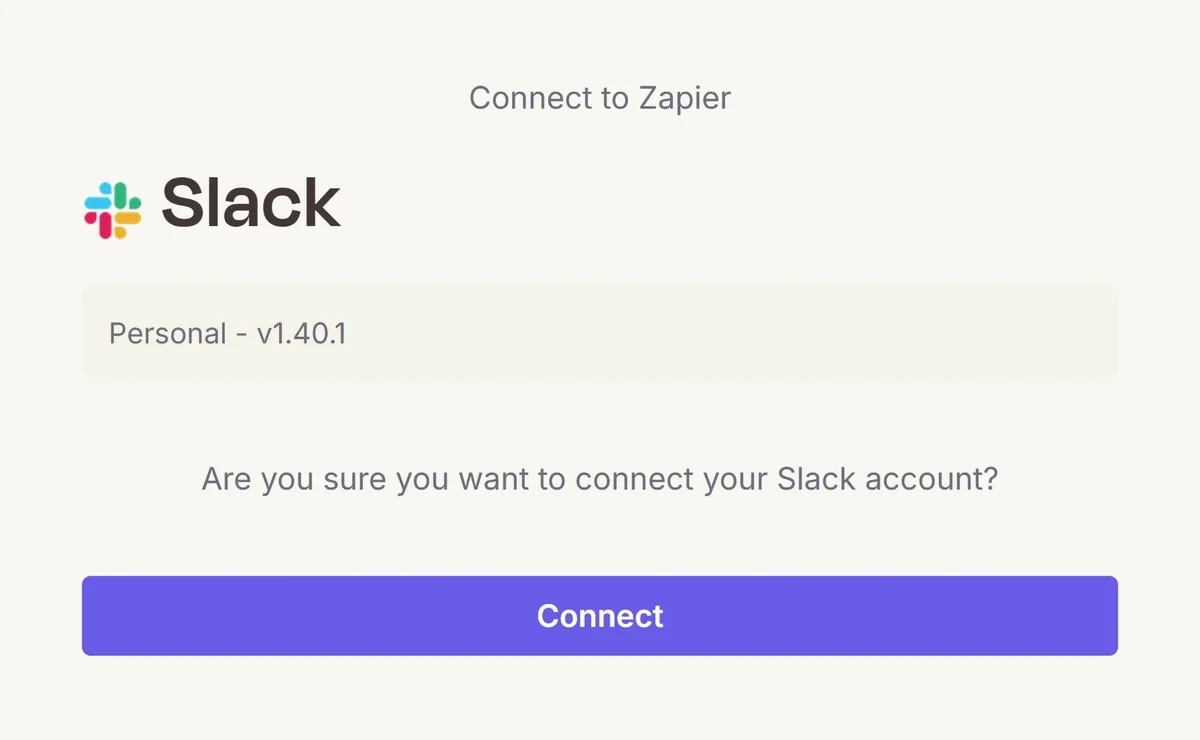
Then click the Sign in button to connect your Slack account to Zapier. This will open a popup where you can confirm that you wish to connect your accounts.
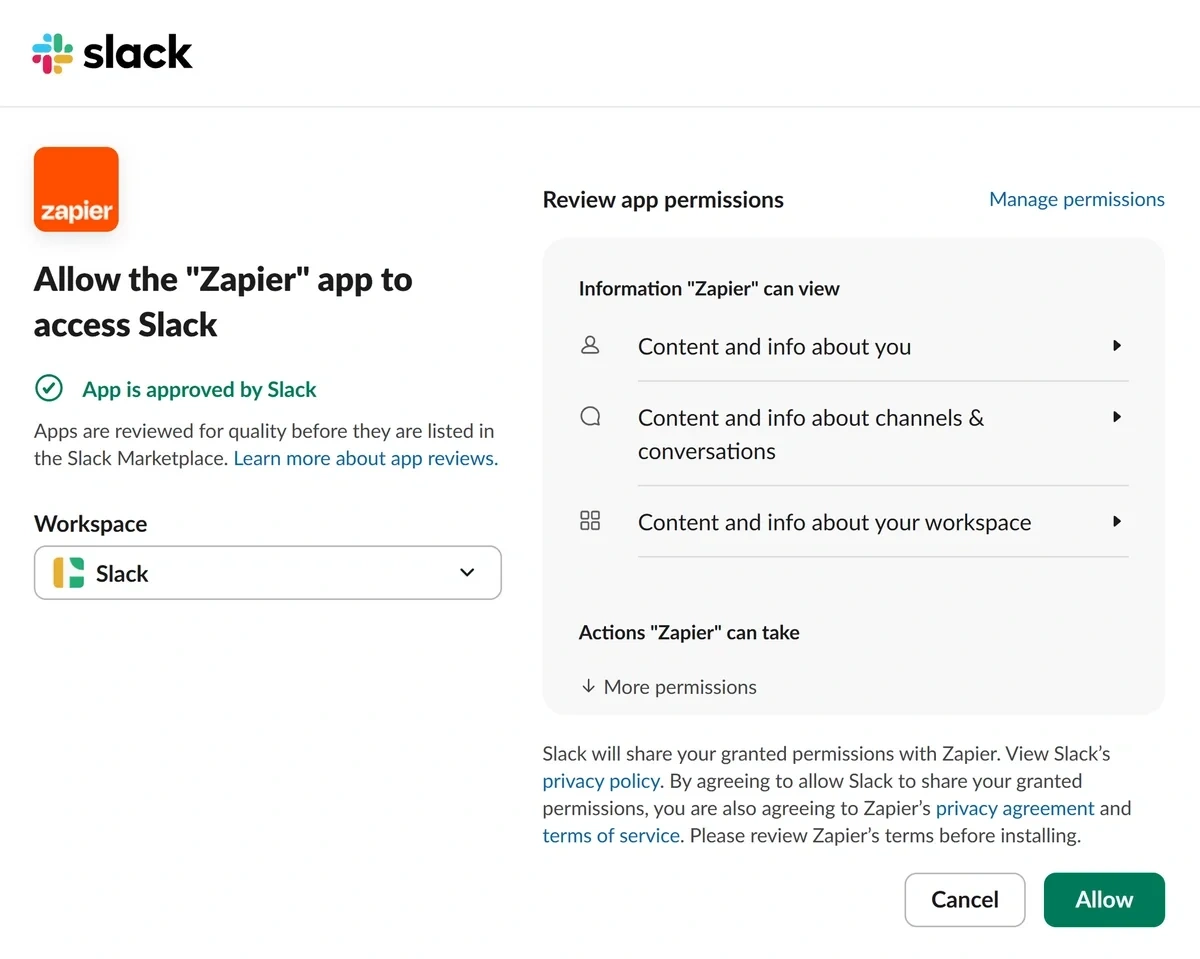
You’ll then need to select the Slack workspace you want to send the message to and grant Zapier permission to access it.
Click Continue in the workflow configuration panel to move to the next step.
There are several customization options for sending a message to Slack from Zapier. If you created a dedicated channel for trend alerts, you should select it from the Channel dropdown here.
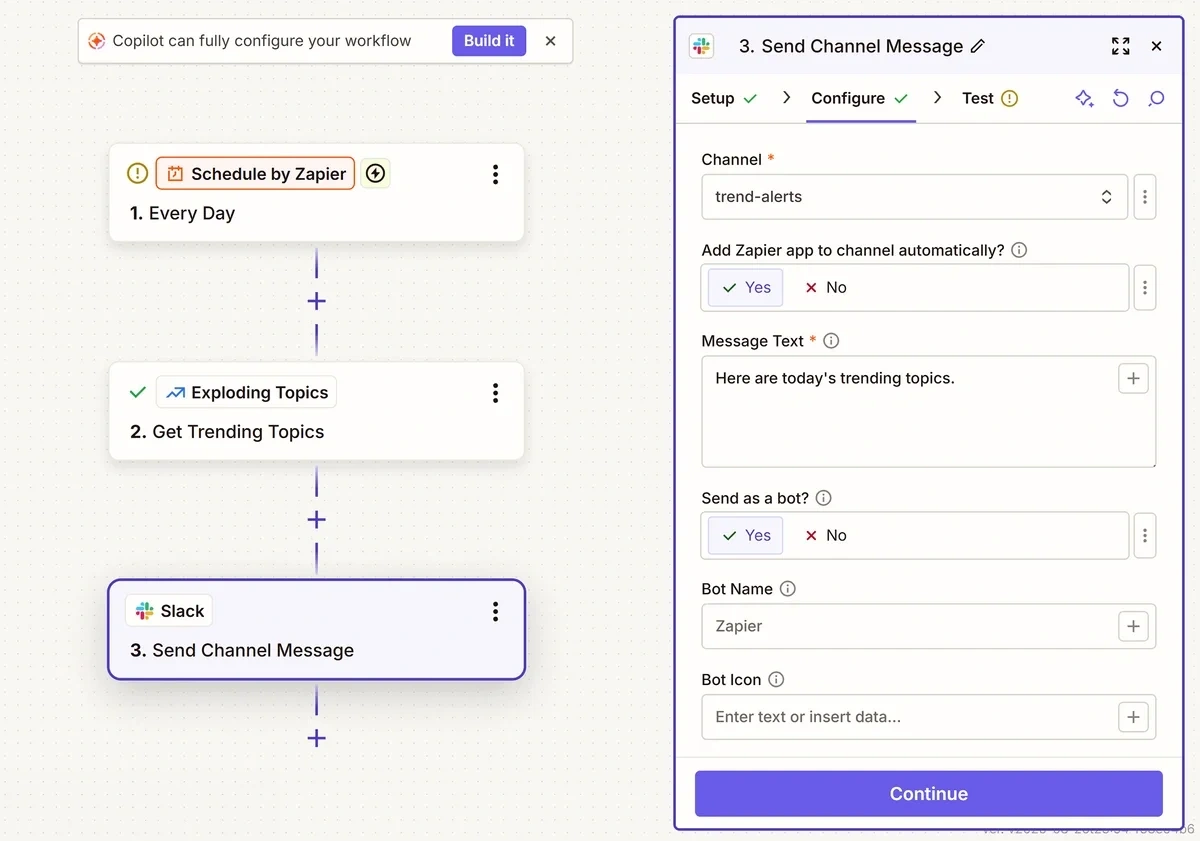
Then add your message text. You can include custom text if you want to, but make sure to click on the plus (+) button and select Get Trending Topics in Exploding Topics. You may then select which data from Exploding Topics you want to include in your message.
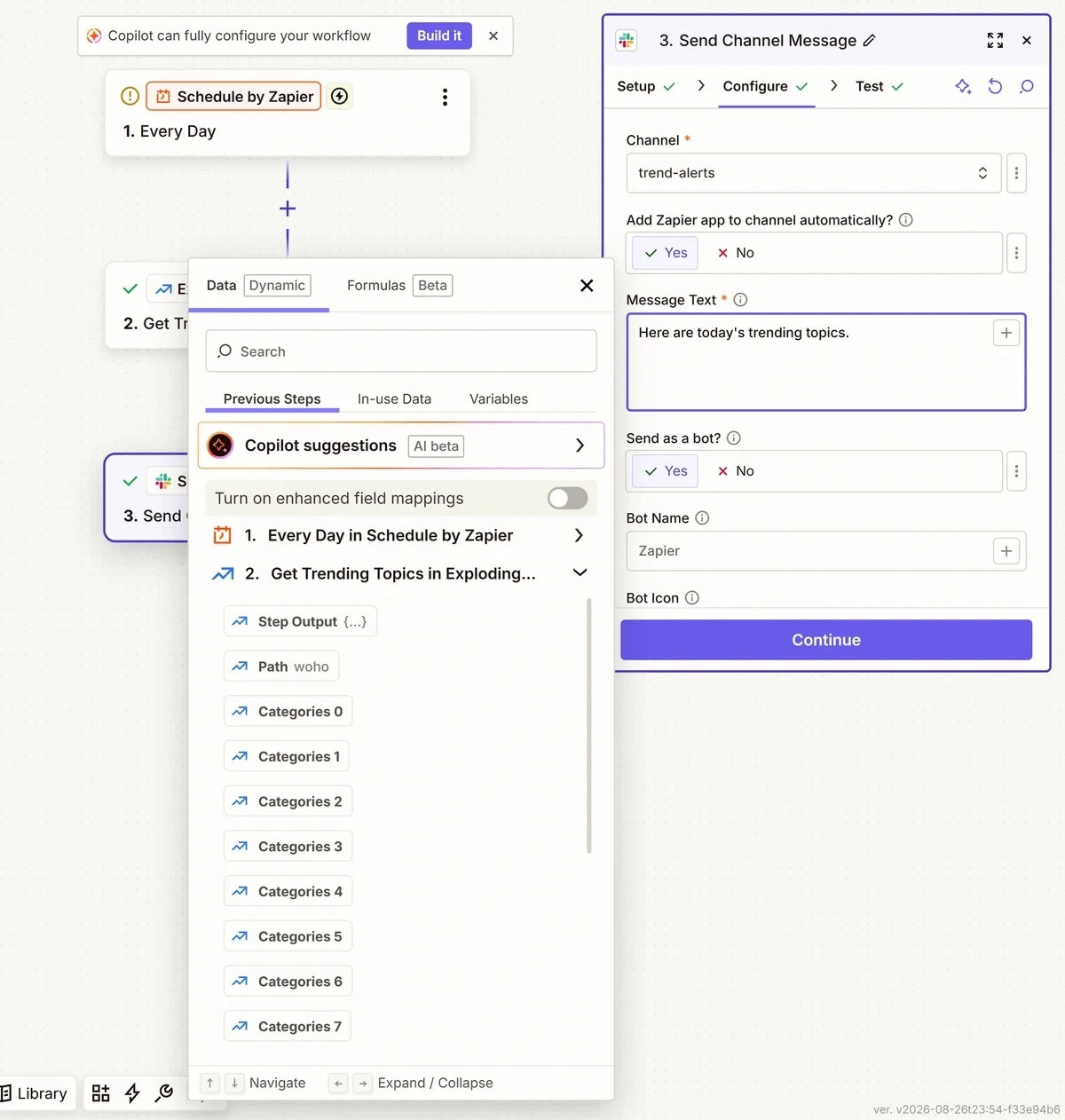
I recommend using the following:
- Path: This will tell you the name of the trend—the Keyword option also works for this purpose.
- Absolute Volume: The total search volume for the trend, so you can evaluate its popularity.
- Categories: Which category or categories the trend falls under, which can be helpful for making sure the topic is relevant to your niche.
- Description: A short description of the trend to give you some context regarding what it is and why people are interested in it.
This will give enough initial information in your trend alert to determine if you want to do more research into the topic.
Channel and Message text are the only required fields, but you may also:
- Customize the bot that sends your message
- Include an image or file with the message
- Choose whether to post in a thread or directly in the channel
When you’re happy with your settings, click Continue.
You will once again have a chance to test your workflow. Click Test step.
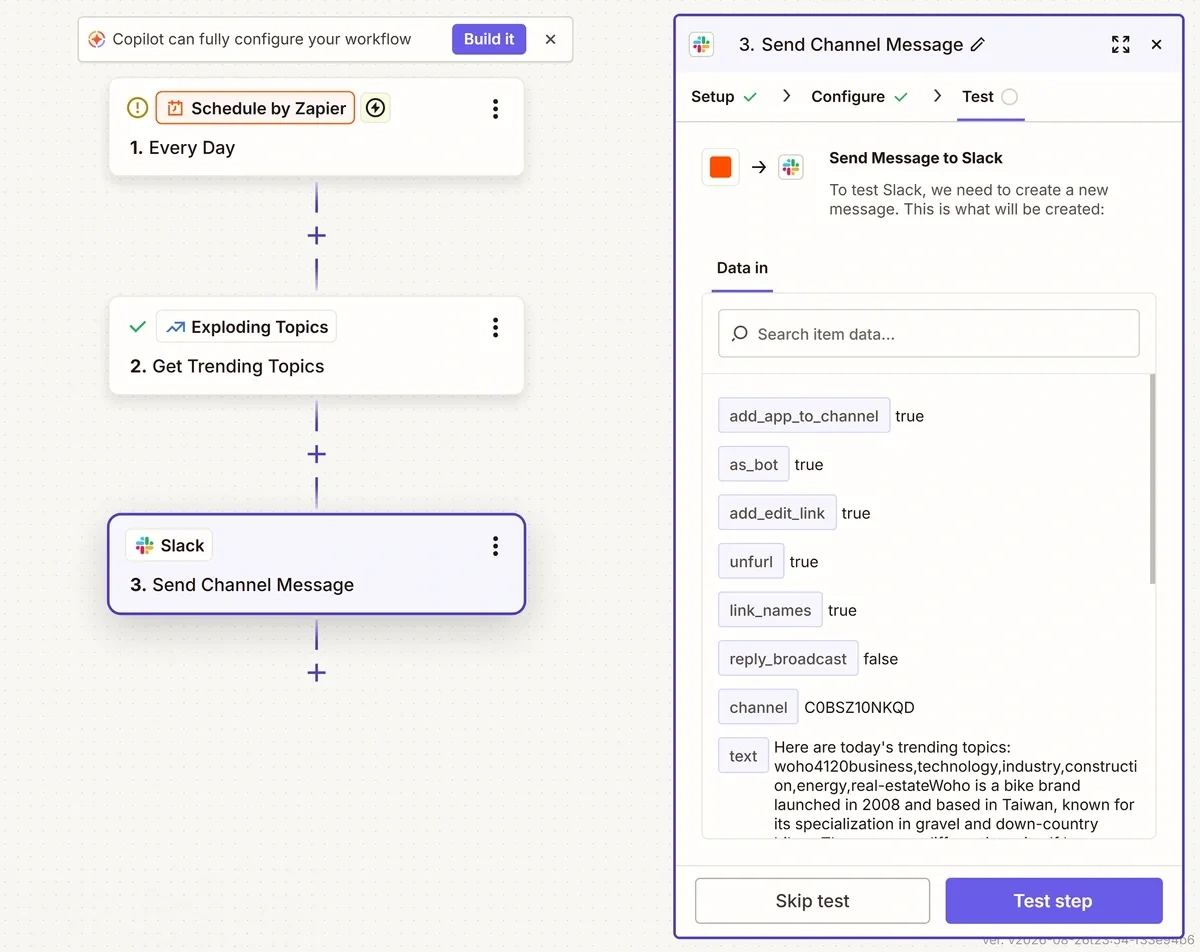
If everything is working properly, you’ll see a success message. You should also check your Slack channel and make sure you see a message with the test data there.
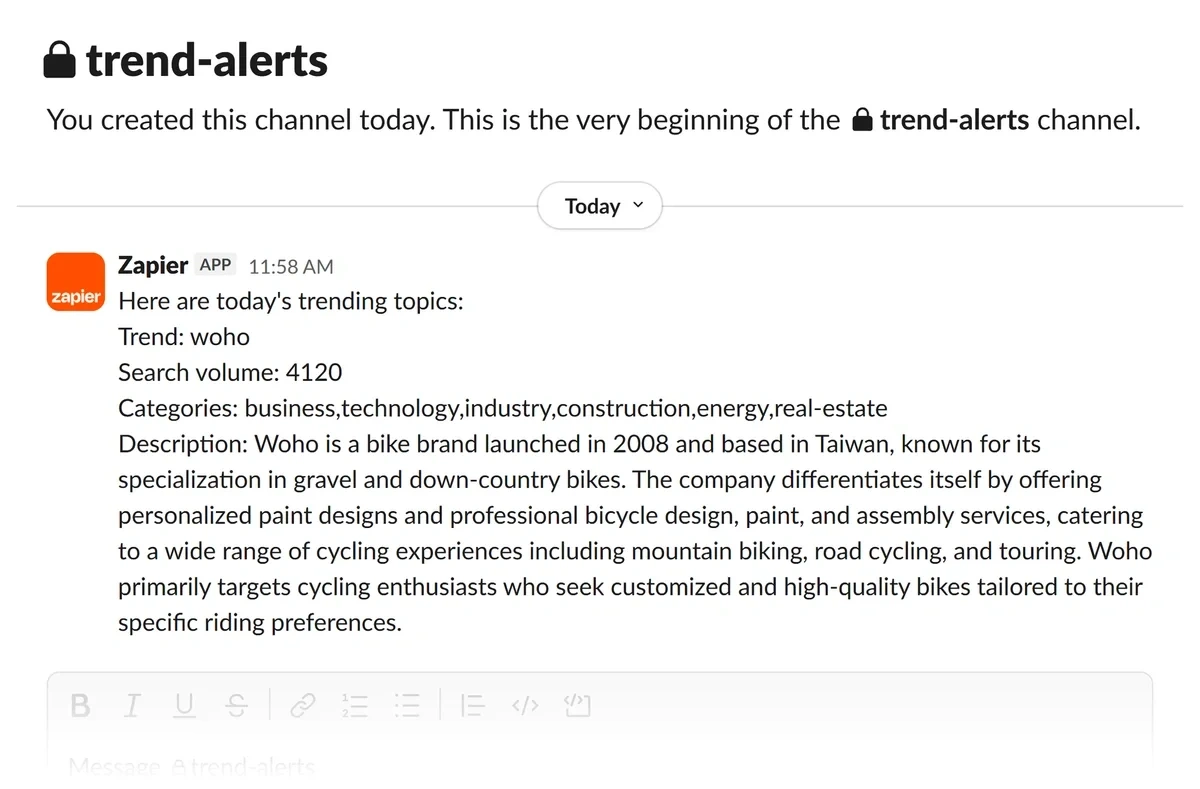
If everything looks the way you expected, click the Publish button.
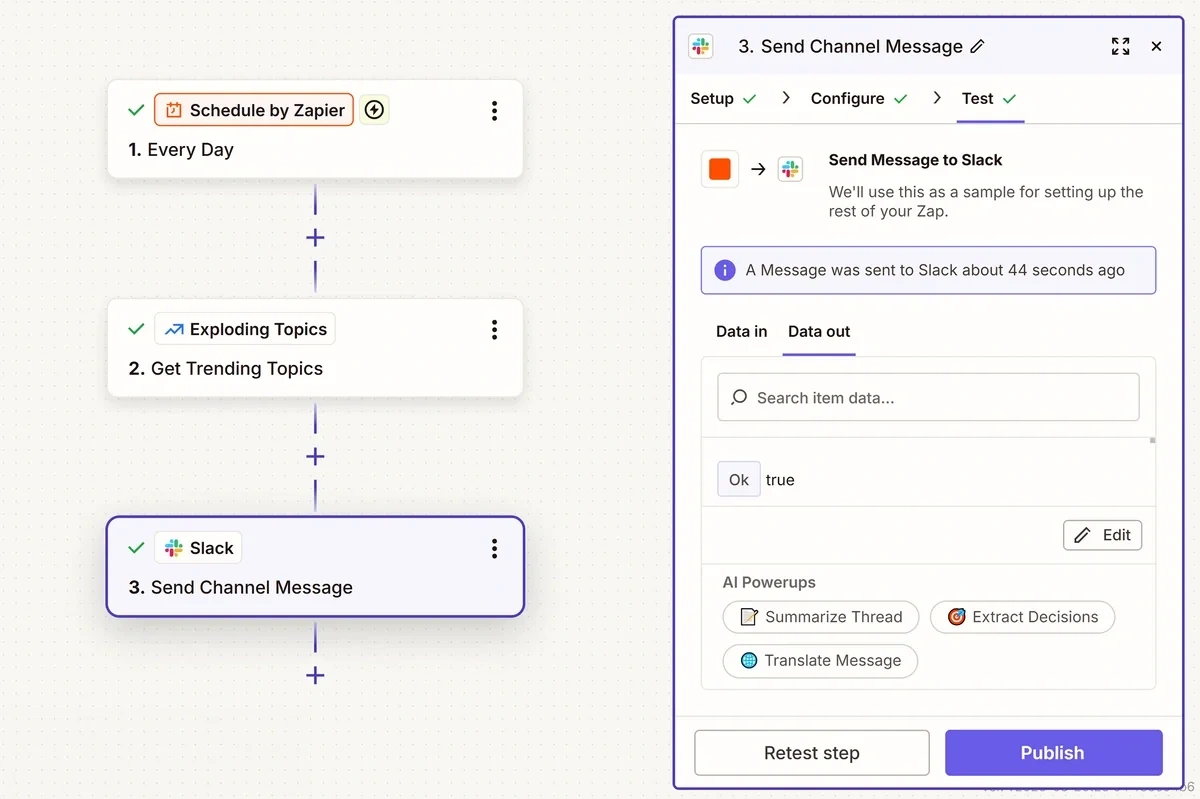
Your workflow will start running on the schedule you specified earlier.
Step 4: Review and Analyze Promising Trends
With your trend alerts up and running, you’ll now have viable ideas for content, products, or investment opportunities delivered to your Slack channel on a regular basis. The work doesn’t stop there, though.
You’ll need to do a bit of additional research to determine which trends from your alerts are worth pursuing. Depending on your goals, this process may involve:
Regardless, in most cases the best place to start is by looking up the trend in the Exploding Topics Database.

Here you can see related trends, expected growth trajectory, social media presence, and other details. Ideally, you want to catch trends before they peak so you have time to take action on them before consumer interest starts to wane.
For keyword research, I recommend using Semrush. The keyword overview tool will give you details such as how difficult it is to rank for, search volume, and keyword variations.
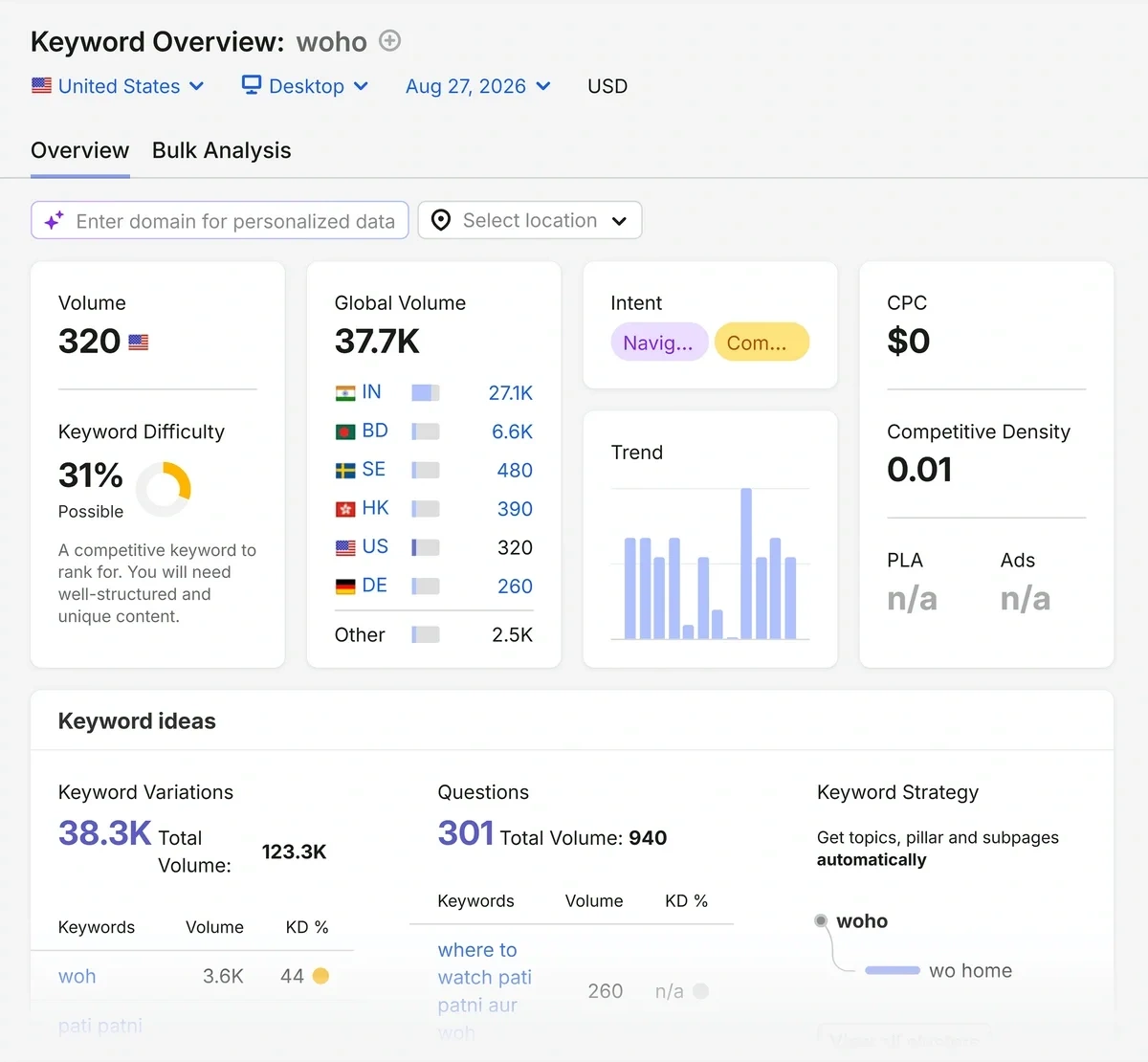
When content planning, I like to look for low competition keywords that offer a good balance between keyword difficulty and search volume.
Once you’ve analyzed the trends you sent to Slack from Exploding Topics, you can add them to your project management app or assign them to a teammate for further action towards your larger goals, whatever they may be.
Spot Trends Sooner With Exploding Topics + Zapier
Taking the manual work of finding trends out of the equation by sending them directly to a dedicated Slack channel means you can discover relevant topics, products, and startups faster and with less effort.
There are endless ways to make this automation and others work for you so you can spend less time on repetitive tasks and more time on meaningful, data-backed decision making. With Exploding Topics’ Zapier integration, it’s easier than ever to use the Exploding Topics API to bring the very best trend data wherever you need it most.
All you need to get started is an Exploding Topics Pro plan. Test it out with a seven-day free trial and see how much time you can save!
Stop Guessing, Start Growing 🚀
Use real-time topic data to create content that resonates and brings results.

Exploding Topics is owned by Semrush. Our mission is to provide accurate data and expert insights on emerging trends. Unless otherwise noted, this page’s content was written by either an employee or a paid contractor of Semrush Inc.
Share
Newsletter Signup
By clicking “Subscribe” you agree to Semrush Privacy Policy and consent to Semrush using your contact data for newsletter purposes
Written By


Molly is a technical content writer with a passion for making technology easy for anyone to understand. She specializes in content... Read more